

Using Web Clipper
Introduction
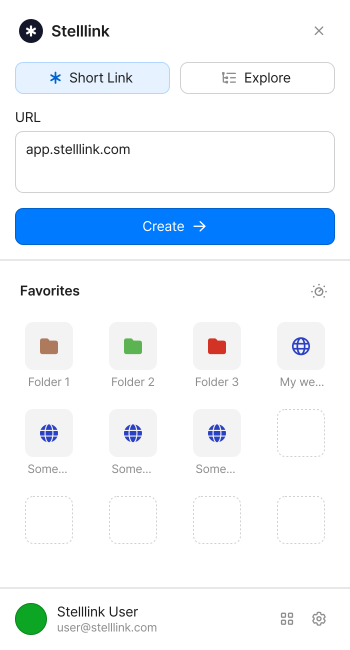
Section titled “Introduction”Stelllink Web Clipper is a browser extension you install in the web browser you already use, so you can keep your familiar browsing setup. Without leaving the tab, you can save the page you’re viewing to Stelllink and create a short link to share it right away.
Links and folders you save with Web Clipper are gathered in the Web Clipper Cluster in the Stelllink app. The extension and the app show the same content, so you can collect quickly in the browser and organize in the app.
Install
Section titled “Install”Web Clipper is available for web browsers on your computer. Install it from the store that matches your browser.
After installing, click the Web Clipper icon in your browser toolbar to open it. If you don’t see the icon, pin Web Clipper to the toolbar from your browser’s extensions menu.
Sign in
Section titled “Sign in”Web Clipper uses the Stelllink account you’re signed in to in the same browser. There’s no separate sign-in: if you’re signed in to Stelllink web in that browser, you can start using it right away.
If you’re not signed in, you’ll see a sign-in prompt when you open Web Clipper. Click Sign in to Stelllink, sign in, and then open Web Clipper again.
Create a short link
Section titled “Create a short link”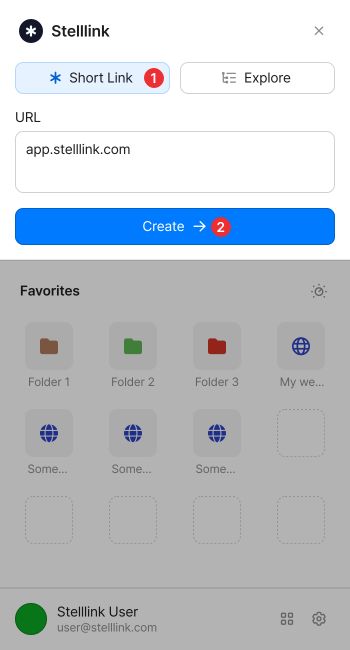
When you open Web Clipper, the Short Link screen appears and the address of the tab you’re viewing is filled in the URL field automatically.
- Open Web Clipper on the page you want to create a short link for.
- Check the URL and click Create. You can also edit the URL yourself if needed.
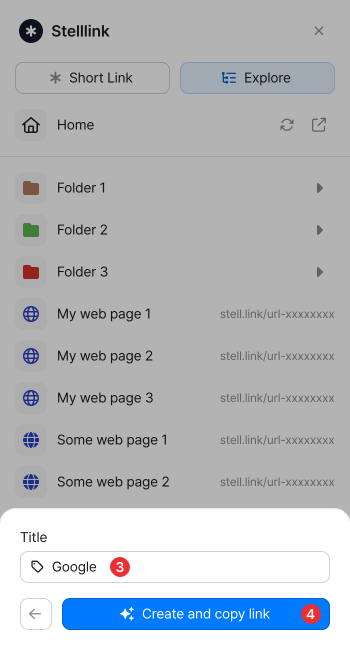
- Go to the folder you want to save to. The Title is filled in with the page title, and you can change it to anything you like.
- Click Create and copy link.
The short link is copied to your clipboard as soon as it’s saved, so you can paste it straight into chat or email.
Save straight to the folder you’re viewing
Section titled “Save straight to the folder you’re viewing”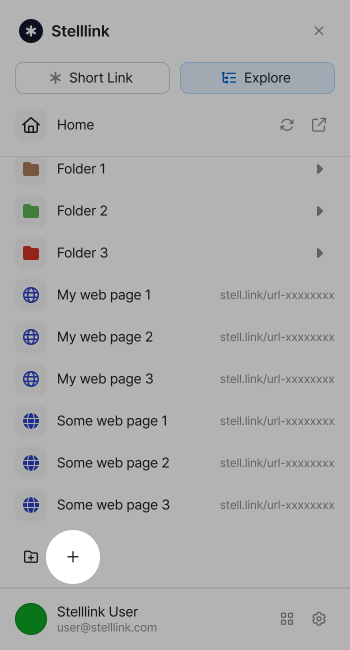
If you already have the folder open on the Explore screen, click Save current tab here and copy link to save in one step. The title of the tab you’re viewing is used as the title, and the short link is copied right away.
Explore and organize
Section titled “Explore and organize”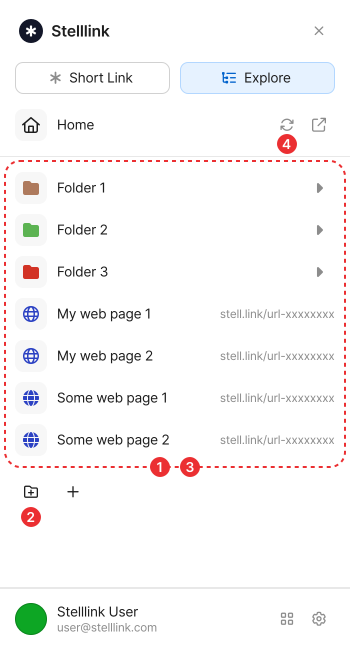
On the Explore screen, you can browse and organize the Web-Links and folders you’ve saved with Web Clipper, folder by folder.
- Open: Click a folder to go into it, or click a Web-Link to open the page in a new tab. Use the parent folder button at the top to go back up one level.
- New folder: Create a folder in the current location. You can choose its name and color.
- Move: Select several Items and drag them onto another folder to move them all at once. Hover over a folder for a moment while dragging to open it, so you can move Items into deeper folders too.
- Refresh: Reload changes made in the app or in another browser.
You can change how Items open in Preferences. By default, a single click opens them, but you can switch to double-click, just like in the Stelllink app.
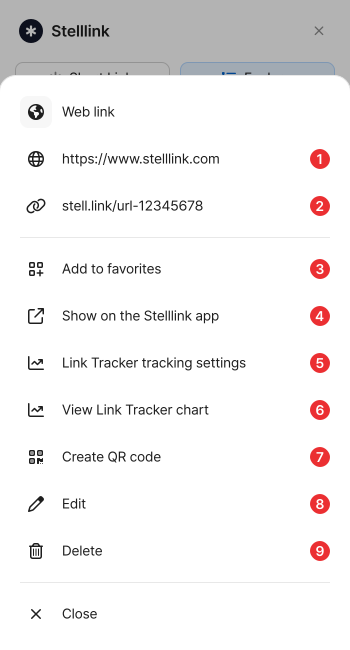
Click an Item’s menu button to use the following features.
| # | Menu | What it does |
|---|---|---|
| 1 | Copy URL | Copies the original page address. |
| 2 | Copy short link | Copies the short link for sharing. |
| 3 | Add to favorites | Pins the Item to a favorites slot. |
| 4 | Show on the Stelllink app | Opens the Item’s location in Web Clipper in the Stelllink app. |
| 5 | Link Tracker tracking settings | Opens Stelllink on the web in a new tab and brings up the visit tracking settings for the short link. |
| 6 | View Link Tracker chart | Opens Stelllink on the web in a new tab and shows the visit statistics chart for the short link. |
| 7 | Create QR code | Opens Stelllink on the web in a new tab and brings up the Customize QR Code window. |
| 8 | Edit | Changes the title and URL of a Web-Link, or the name and color of a folder. |
| 9 | Delete | Deletes the Item. |
Stelllink’s sharing features, like Link Tracker and QR codes, are also just a click away in the Item menu.
Favorites
Section titled “Favorites”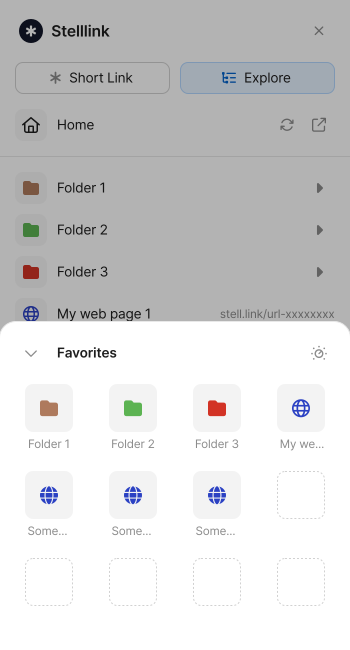
Pin the links you open often to your favorites, and you can open them as soon as you open Web Clipper. Your favorites appear at the bottom of the Short Link screen and behind the favorites button at the bottom.
- Open: Web-Links open in a new tab, and folders open on the Explore screen.
- Add: Click Add to favorites in the Item menu. You can pin up to 12 favorites. When all 12 slots are full, choose a slot to replace.
- Reorder: Drag a slot to where you want it. Dragging switches to Edit mode.
- Unpin: Turn on Edit mode and click the unpin button on the slot you want to remove.
- Auto sort: Sorts your favorites by name, with folders first.
- Unpin all: Clears all pinned favorites at once.
Use with the Stelllink app
Section titled “Use with the Stelllink app”Items you save with Web Clipper appear in the Web Clipper Cluster in the Stelllink app. Anything you save, edit, or delete in Web Clipper shows up right away in the open app, and you can also search for it with Path Finder.
In the app’s Web Clipper, you can organize Items like this:
- Save Web-Links: Copy a URL and paste it into Web Clipper with
Ctrl + VCmd + Vto save it as a new Web-Link. - Move to a Cluster: Drag Web Clipper Items to another Cluster to move them as regular folders and Web-Links, so you can use them as shared resources with your team.
- Move to Web Clipper: You can also move Items from a Cluster into Web Clipper. Web-Links are moved as is, while folders, files, and pages are copied as Web-Links and the originals stay in place.
Privacy and permissions
Section titled “Privacy and permissions”- Web Clipper runs only when you open it by clicking its icon in the toolbar.
- Only the address and title of the tab you’re viewing, or the address you enter and that page’s title, are sent to your Stelllink account.
- It doesn’t read or collect page content.
- It doesn’t track your browsing history in the background.