

Offline Spaces
Introduction
Section titled “Introduction”An Offline space connects a folder on this device as a Space, so you can work with the files in it right from Stelllink. Your resources stay in the folder on this device instead of on a server, and everything you do in Stelllink is applied to the actual folders and files right away.
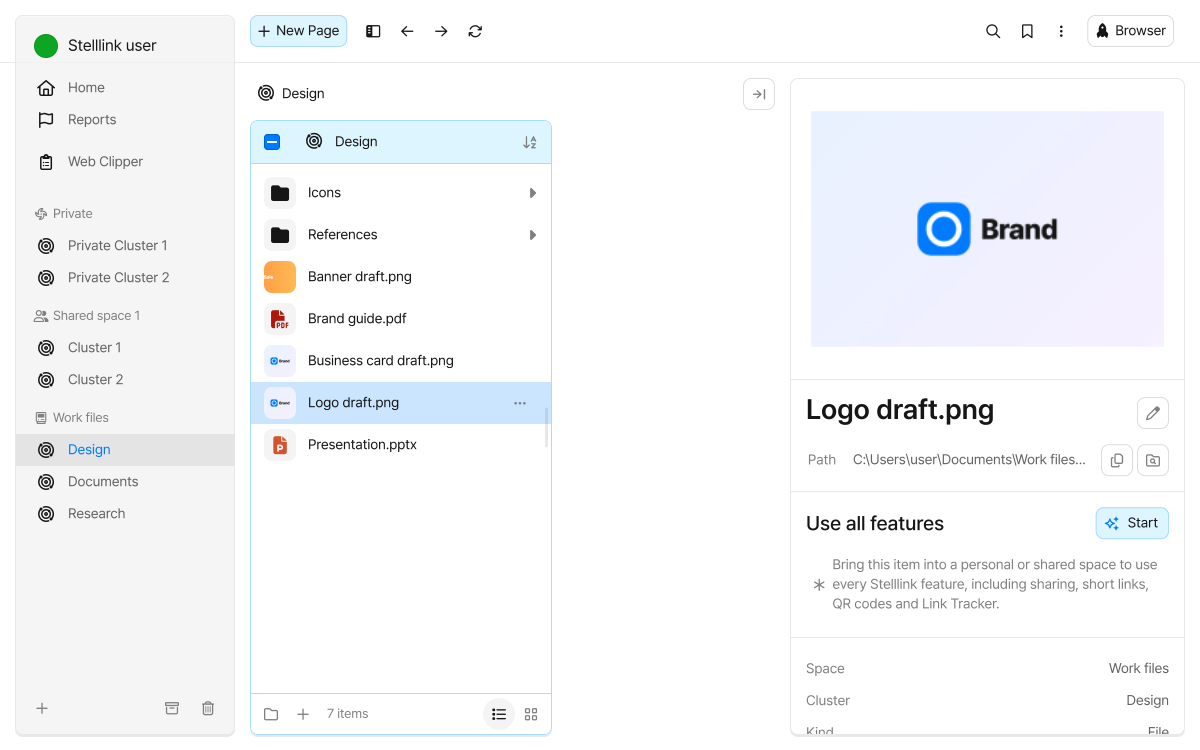
A connected folder maps to Stelllink’s structure as follows.
| Folder on the device | Stelllink | Example |
|---|---|---|
| The connected folder | Space | Work files |
| Folders directly inside it | Cluster | Design, Documents |
| Files and folders inside a Cluster folder | Item | Draft.png, Meeting notes.docx |
How Offline spaces differ from online Spaces
Section titled “How Offline spaces differ from online Spaces”Because Offline spaces don’t go through a server, they work a little differently from your Private space and shared Spaces.
| Private and shared Spaces | Offline spaces | |
|---|---|---|
| Stored in | Stelllink servers and your connected Google Drive | A folder on this device |
| Available on other devices | Every device you sign in on | This device only (folders in a cloud drive are synced by that service) |
| Visible to | Your account | Every account signed in on this device |
| Inviting members and sharing | Available | Not available |
| Short links, QR codes, Link Tracker | Available | Not available |
| Trash | Kept for 30 days | Kept until you empty it |
To share an Item in an Offline space with others or create a short link for it, move it to your Private space or a shared Space. See Moving Items to online Spaces for how.
Create an Offline space
Section titled “Create an Offline space”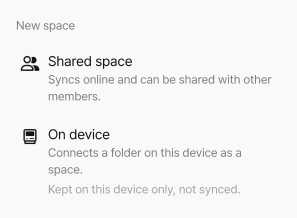
- Click the New space button at the bottom of the sidebar. You can also use the Add button in Preferences > Offline space.
- Choose On device. In the iPhone app, you connect a folder in iCloud Drive, a cloud drive, so choose In iCloud instead.
- Select the folder to connect as a Space.
The folder’s name becomes the Space name, and the new Space is added to the bottom of the sidebar. Because you connect a folder that already exists, the files and folders already in it show up in the Space right away.
A folder on this device stays only on this device, and Stelllink doesn’t sync it to other devices. You can also connect a folder in a cloud drive such as iCloud Drive. The cloud drive then syncs the files, so you can use them on other devices that connect the same folder.
You can’t connect folders that are too broad, such as the top folder of a drive, your user home folder, or system folders, or a folder above or below a Space you’ve already connected.
In the sidebar
Section titled “In the sidebar”Offline spaces appear in the same list as your Private space and shared Spaces, marked by the icon next to their name. A folder on this device shows a computer icon (a phone icon on mobile), and a folder in iCloud Drive, a cloud drive, shows an Apple icon. Drag them to change their order, just like other Spaces.
Click the More button next to the Space name to go straight to Manage offline spaces.
Clusters
Section titled “Clusters”A Cluster in an Offline space is a folder directly inside the Space folder.
- Create: In the sidebar, click the Create cluster button next to the Space name and enter a name. A folder with the same name is created in the Space folder.
- Rename and change the icon: Right-click a Cluster and choose Rename cluster to change its name, icon, and color. Renaming a Cluster also renames its folder on the device.
- Archive: Right-click a Cluster and choose Archive cluster.
- Move: Drag a Cluster onto another Offline space to move its folder into that Space folder.
A folder you create in the Space folder from File Explorer or Finder also shows up as a Cluster.
Working with Items
Section titled “Working with Items”Opening and previewing
Section titled “Opening and previewing”- Folders: Open in the next column of the Space Browser.
- Images, PDFs, audio, and video: Open in the preview window. If a format can’t be previewed, click Open in default app.
- Internet shortcut files (
.url,.webloc): Open in Rocket Browser. - Other files: Open in the default app installed on this device. Edit and save the contents there.
The preview panel shows an Item’s path, size, and modified and created dates. For a folder, click Calculate size to see its size.
Creating and importing Items
Section titled “Creating and importing Items”- New page: Under Offline files, create a Text file, Word document, Excel document, PowerPoint document, or ThinkFree Office HWPX document. The new file opens in its default app.
- New folder: Creates a folder in the current location.
- Import files, Import folder: Copy files or a folder from elsewhere on the device into the current location.
- Import bookmarks: Imports bookmarks from another browser as internet shortcut files.
You can also save a copied image or URL by pasting it. Images are saved as PNG files and URLs as internet shortcut files. To bring in files from File Explorer or Finder, paste them or drag & drop them.
Organizing
Section titled “Organizing”Right-click an Item to use the following menu.
- Copy, Cut, Paste, Rename, Move to trash
- Make shortcut: Creates a shortcut file to the Item in the same location.
- Show in Explorer (Show in Finder on Mac): Opens the Item’s location in the device’s folder.
- Copy path: Copies the path where the Item is stored.
If an Item with the same name already exists, nothing is overwritten; a number such as (2) is added after the name. Path Finder also finds Items in Offline spaces by name, and you can undo what you just did with Ctrl + ZCmd + Z.
Changes made in other apps
Section titled “Changes made in other apps”When you add, delete, or rename files in the folder from File Explorer, Finder, or another app, Stelllink reflects the change. The desktop apps pick it up within a few seconds, and the mobile apps when you return to the app.
Moving Items to online Spaces
Section titled “Moving Items to online Spaces”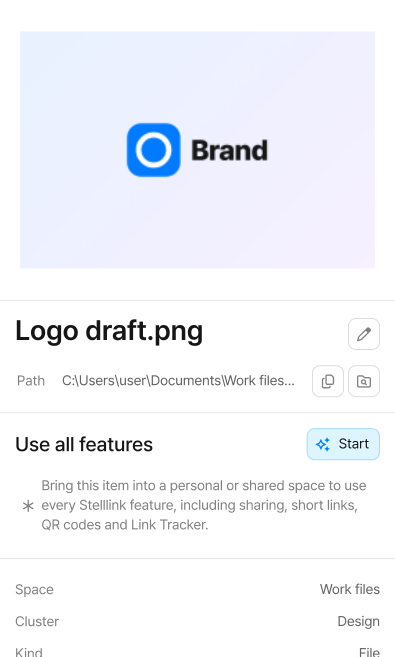
You can move Items between Offline spaces and your Private or shared Spaces. Moving from an Offline space to an online Space uploads the Item, and moving the other way downloads it to the folder on this device.
- Drag & drop and paste: Always copy, and the original Item stays where it was.
- Move: Right-click an Item and choose Move to move it and delete the original. To keep the original, turn on Copy and move. Folders moved from an Offline space to an online Space are always copied.
You can also click Start under Use all features in the preview panel to move an Item to your Private or a shared Space. Once moved, the Item can use every Stelllink feature, including sharing, short links, QR codes, and Link Tracker.
Delete and restore
Section titled “Delete and restore”Items deleted in an Offline space are moved to the trash that each Cluster has. Unlike online Spaces, they aren’t deleted automatically; they stay until you Delete permanently or empty the trash. Open the trash with Toggle trash at the bottom of the sidebar, then Restore Items or Delete permanently.
Manage Offline spaces
Section titled “Manage Offline spaces”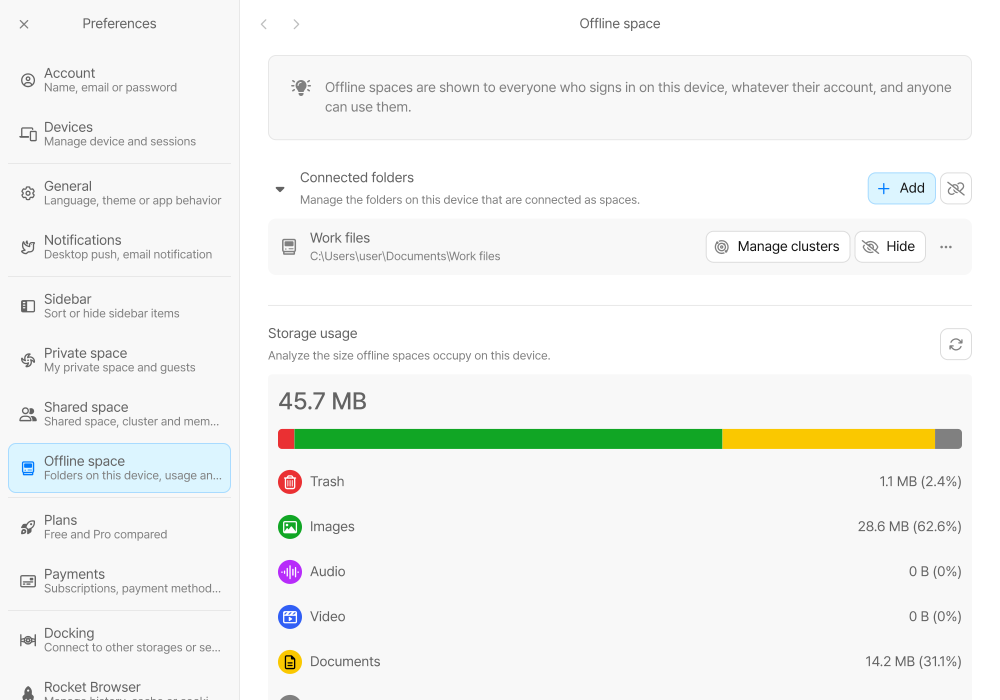
Manage your connected folders and their storage in Preferences > Offline space.
Connected folders
Section titled “Connected folders”Each connected folder shows its name and path. Click the path to open the folder in File Explorer or Finder.
- Manage clusters: Create, rename, change the icon of, archive, or delete Clusters. Deleting a Cluster deletes its folder and the files in it from the device right away, and it can’t be undone.
- Hide: Hides the Space from the sidebar. Click Show to bring it back. The hidden state is saved in the folder, so it applies to every account on this device and to other devices that connect the same folder.
- Rename: Renames both the Space and its folder on the device.
- Move to another location: Moves the Space folder to another location on the device.
- Open this folder: Opens the Space folder in File Explorer or Finder.
Rename, Move to another location, and deleting Clusters aren’t available in the iPhone and Android apps. Rename the folder in the Files app, then reconnect it with Locate folder.
Remove a Space
Section titled “Remove a Space”Click the More button and choose Remove space to pick one of two options.
- Disconnect: Removes the Space from Stelllink only. The folder and files on this device stay, and if you connect the same folder again, its Cluster order and archive state come back too.
- Delete permanently: Deletes the folder on this device along with every Cluster and file in it. Enter the Space name to confirm.
Click Disconnect all folders to disconnect every connected folder at once.
When a folder can’t be found
Section titled “When a folder can’t be found”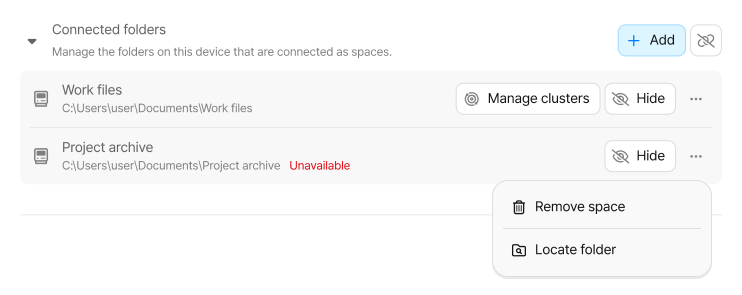
If you move or delete a connected folder in File Explorer or Finder, its Space disappears from the sidebar and is marked Unavailable in Preferences > Offline space.
- Put the folder back where it was, and the Space comes back automatically.
- If you moved the folder elsewhere, click the More button, choose Locate folder, and select the moved folder.
- If you no longer use the folder, choose Disconnect under Remove space.
Storage usage and clearing the trash
Section titled “Storage usage and clearing the trash”- Storage usage: Shows how much space Offline spaces take up on this device, broken down into Trash, Images, Audio, Video, Documents, and Other files.
- Clear trash: Click Clear to permanently delete the trashed Items of every Offline space from the disk. Deleted Items can’t be recovered.