

Rocket Browser
Introduction
Section titled “Introduction”Rocket Browser is the built-in browser in the Stelllink desktop and mobile apps. Browse the web without leaving Stelllink, and save a page as a Web-Link the moment you find it. Pages and Web-Links you open from the Space Browser also open in Rocket Browser, so finding and opening resources happens on one screen.
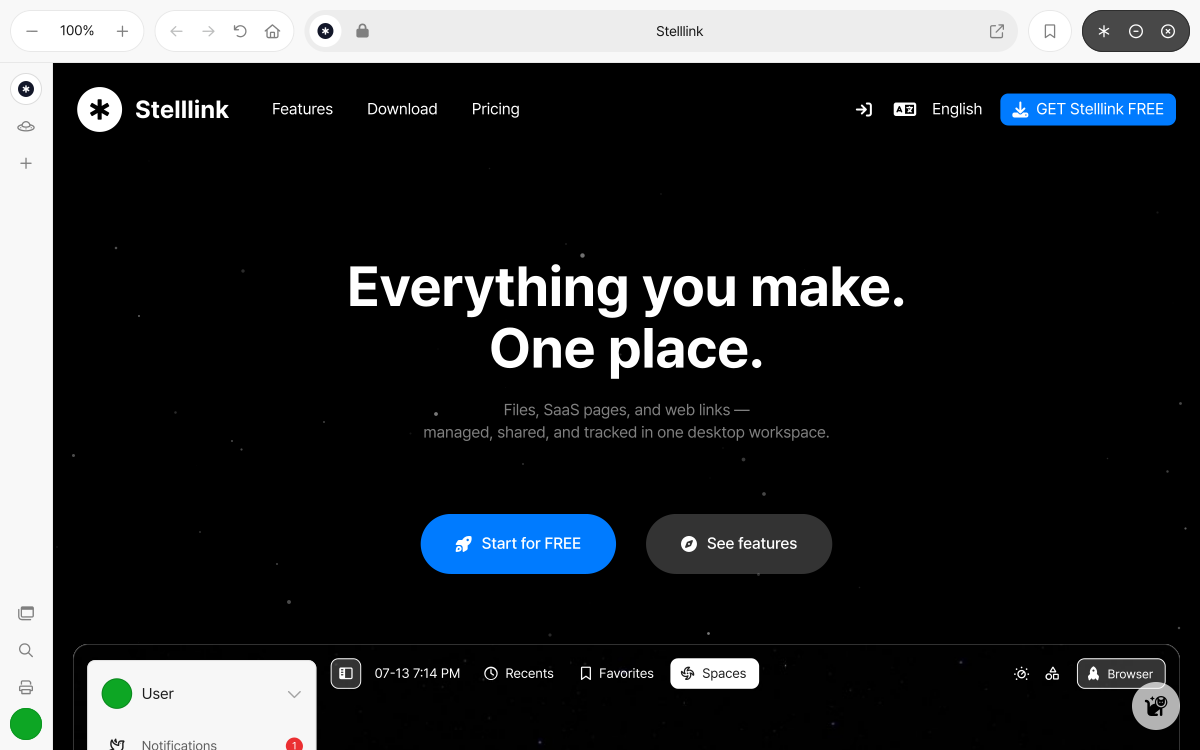
| # | Area | Description |
|---|---|---|
| 1 | Tab list | Open tabs are listed vertically on the left. The new tab, new incognito tab, new window, find, and print buttons are here too. |
| 2 | Address bar | Enter a web address to go to it, or a search term to search Google. |
| 3 | Tool buttons | Zoom in and out, Downloads, My favorites, and Save this link. |
| 4 | Minimize, close | Minimize Rocket Browser takes you back to the Space Browser and keeps your tabs; Close all tabs closes Rocket Browser. |
Open and close
Section titled “Open and close”- Open: Click the Browser button in the upper-right corner of the Space Browser, or press
Ctrl + Shift + BCmd + Shift + B. If no tabs are open, a Google page opens. - Open in a new tab: Press
Ctrl + TCmd + Tto open a new tab right away, even when Rocket Browser is closed. - Minimize: Click the Minimize Rocket Browser button, or press
Ctrl + Shift + BCmd + Shift + Bagain, to go back to the Space Browser and keep your tabs. When you open it again, you pick up right where you left off. - Close: Click the Close all tabs button or press
Ctrl + Shift + XCmd + Shift + Xto close every tab and exit Rocket Browser. Closing the last tab also closes Rocket Browser.
Pages and Web-Links you open from the Space Browser open in a new Rocket Browser tab. To open them in your device’s default browser instead, turn off Prefer Rocket Browser in Preferences. You can also right-click an Item and choose Open in Rocket Browser or Open in external browser to decide each time.
Save Web-Links
Section titled “Save Web-Links”
Save the page you’re viewing as a Web-Link with a single button. There’s no need to stop browsing to choose where to save it, so you can keep collecting pages as you find them.
- Open the page you want to save in Rocket Browser.
- Click Save this link in the upper-right corner, or press
Ctrl + Shift + SCmd + Shift + S. - The page’s title and address are saved as a Web-Link in the Temporary space.
Rocket Browser stays open after saving, so you can go on to the next page and keep saving.
Organize in the Temporary space
Section titled “Organize in the Temporary space”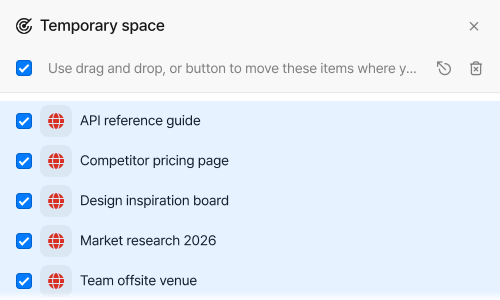
The Temporary space is where Web-Links saved from Rocket Browser wait until you organize them. When it holds Web-Links, a Temporary space button appears in the lower-right corner of the screen, and in the desktop app, the Temporary space opens automatically when you close or minimize Rocket Browser after saving a link from it.
- Move: In the Space Browser, open the Cluster or folder you want, then click Move this item to current cluster/folder. You can also drag a Web-Link onto any column or folder.
- Move several at once: Select the Web-Links to move, then click Move selected items to current cluster/folder. When you open the Temporary space, every Web-Link is already selected.
- Delete: Remove Web-Links you don’t need with Delete this item or Delete selected items.
Web-Links stay in the Temporary space until you move or delete them, so you can put them all where they belong once you have time to organize. When the Temporary space is empty, its button disappears.
My favorites
Section titled “My favorites”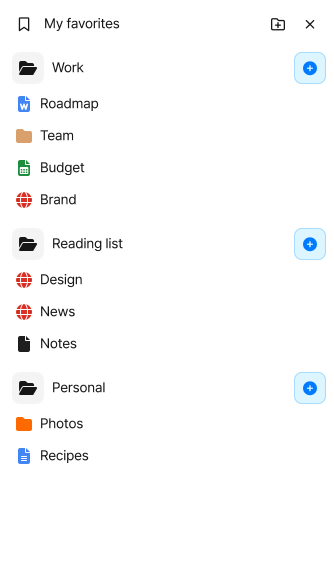
Pin web pages you open often to My favorites so you can open them right away. My favorites in Rocket Browser is the same list as My favorites in the Space Browser.
- Open: Open the panel with the My favorites button in the upper-right corner or
Ctrl + Shift + FCmd + Shift + F, then click the item you want. - Pin: Click Add favorite here on a group to add the page you’re viewing to that group.
- Manage groups: Use New group, Rename group, and Remove group to organize your favorites by topic.
- Move to another group: Drag an item onto another group to move it there. To change the order, use My favorites in Space Browser.
Tabs and windows
Section titled “Tabs and windows”
Rocket Browser shows its tabs vertically on the left. Hover over a tab to see the page’s title and address.
- New tab: Click the New tab button at the top of the tab list, or press
Ctrl + TCmd + T. - Incognito tab: Click the New incognito tab button, or press
Ctrl + Shift + NCmd + Shift + N. Activity in incognito tabs isn’t saved to your browsing history, and incognito tabs aren’t restored when you restart the app. - Close and reopen tabs: Close a tab with
Ctrl + WCmd + W, and reopen a closed tab withCtrl + Shift + TCmd + Shift + T. - Switch tabs: On Windows, move through tabs with
Ctrl + TabandCtrl + Shift + Tab. You can also holdCtrlCmdand scroll the mouse wheel over the tab list to switch tabs. Drag tabs to reorder them. - Search tabs: Press
Ctrl + Shift + ACmd + Shift + Ato search open tabs, recently closed tabs, and your browsing history at once. - New window: Click the New window button at the bottom of the tab list to open another Rocket Browser window. Drag a tab out of the window to split it into a new window, or drop it onto another window to move it there.
Right-click a tab to use New tab to the next, Duplicate, Refresh, Mute tab, Close, and Close other tabs. Your open tabs are restored when you restart the app.
Address bar
Section titled “Address bar”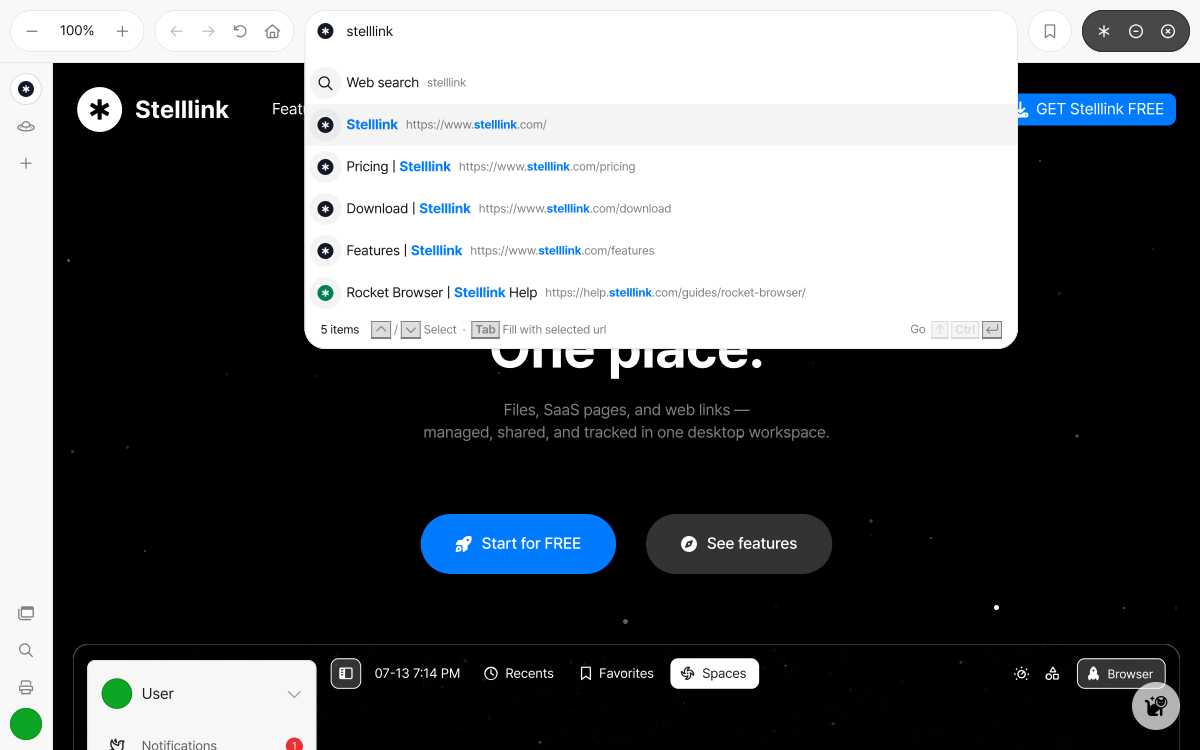
Enter a web address in the address bar to go to that page, or a search term to search Google. As you type, matching pages from your browsing history appear too.
Enter: Opens in the current tab.Shift + Enter: Opens in a new tab.Ctrl + Shift + EnterCmd + Shift + Enter: Opens in a new incognito tab.
Press Ctrl + LCmd + L to start typing in the address bar right away. The icon on the left of the address bar shows whether the page uses a secure connection (HTTPS), and the Open this link in external browser button on the right opens the page you’re viewing in your device’s default browser.
Handy features
Section titled “Handy features”- Find: Press
Ctrl + FCmd + Fto find text on the page. - Zoom: Use the Zoom in and Zoom out buttons in the upper-right corner, or
Ctrl + =Cmd + =andCtrl + -Cmd + -, to change the page size, andCtrl + 0Cmd + 0to reset it. Each tab keeps its own zoom level. - Print: Press
Ctrl + PCmd + Pto print the page. - Downloads: Downloaded files are saved to your device’s Downloads folder. Check their progress, or pause and cancel downloads, with the Downloads button that appears in the upper-right corner once you download a file, or
Ctrl + JCmd + J. - Browsing history: Press
Ctrl + YCmd + Yto open Browsing history, search the pages you’ve visited, and use Open in new tab or Delete history. - Camera and microphone permissions: Sites that use your camera or microphone, such as video meetings, ask for your permission first. A permission you allow lasts only in that tab and is revoked when you leave the page or close the tab.
Manage internet data
Section titled “Manage internet data”In Preferences > Rocket Browser, under Internet data, you can check and delete Rocket Browser’s Browsing history, Cookies and other site data, and Cached images and files. Select what you want to remove, then click Delete selected items. Deleting cookies doesn’t sign you out of Stelllink.
Keyboard shortcuts
Section titled “Keyboard shortcuts”These are the shortcuts you’ll use most in Rocket Browser.
| Action | Shortcut |
|---|---|
| Toggle Rocket Browser mode | Ctrl + Shift + BCmd + Shift + B |
| Save tab as Web-Link | Ctrl + Shift + SCmd + Shift + S |
| Toggle my favorites | Ctrl + Shift + FCmd + Shift + F |
| New tab | Ctrl + TCmd + T |
| New incognito tab | Ctrl + Shift + NCmd + Shift + N |
| Close tab | Ctrl + WCmd + W |
| Reopen closed tab | Ctrl + Shift + TCmd + Shift + T |
| Close all tabs | Ctrl + Shift + XCmd + Shift + X |
| Search tabs | Ctrl + Shift + ACmd + Shift + A |
| Open location | Ctrl + LCmd + L |
| Go back, Go forward | Ctrl + [, Ctrl + ]Cmd + [, Cmd + ] |
| Reload | Ctrl + RCmd + R |
| Find | Ctrl + FCmd + F |
Ctrl + PCmd + P | |
| Downloads | Ctrl + JCmd + J |
| History | Ctrl + YCmd + Y |
| Open in external browser | Ctrl + ECmd + E |
Use it in the mobile app
Section titled “Use it in the mobile app”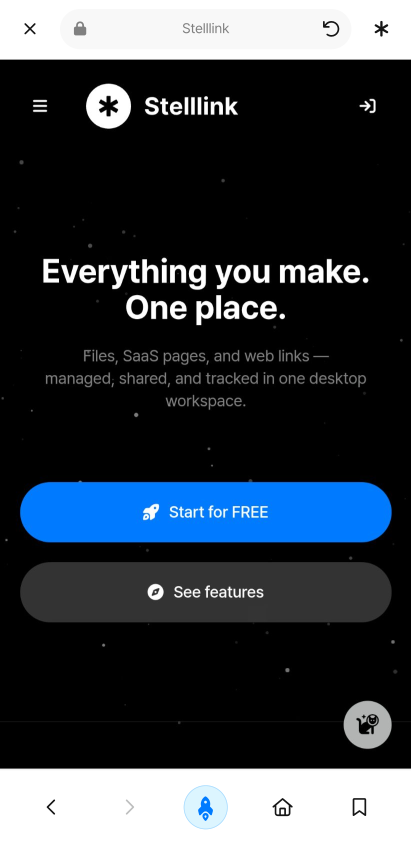
In the mobile app, open Rocket Browser with the Browser button at the bottom of the screen. The mobile app shows one page at a time without tabs, so opening a new link replaces the page you were viewing.
- Top buttons: Close, the address, Refresh, and Save link. Tap the Save link button to save the page you’re viewing to the Temporary space.
- Enter an address: Tap the address to type a web address or search term. The copy link button and the Recents list appear there too.
- Bottom buttons: Back, Forward, Minimize, Home, and My favorites. Tap the Minimize button in the middle to go back to the Space Browser and keep the page open.
- My favorites: In edit mode, tap a group’s add button to pin the page you’re viewing to that group.
In the mobile app, audio and video files also open in Rocket Browser, along with pages and Web-Links.