

Preferences
Introduction
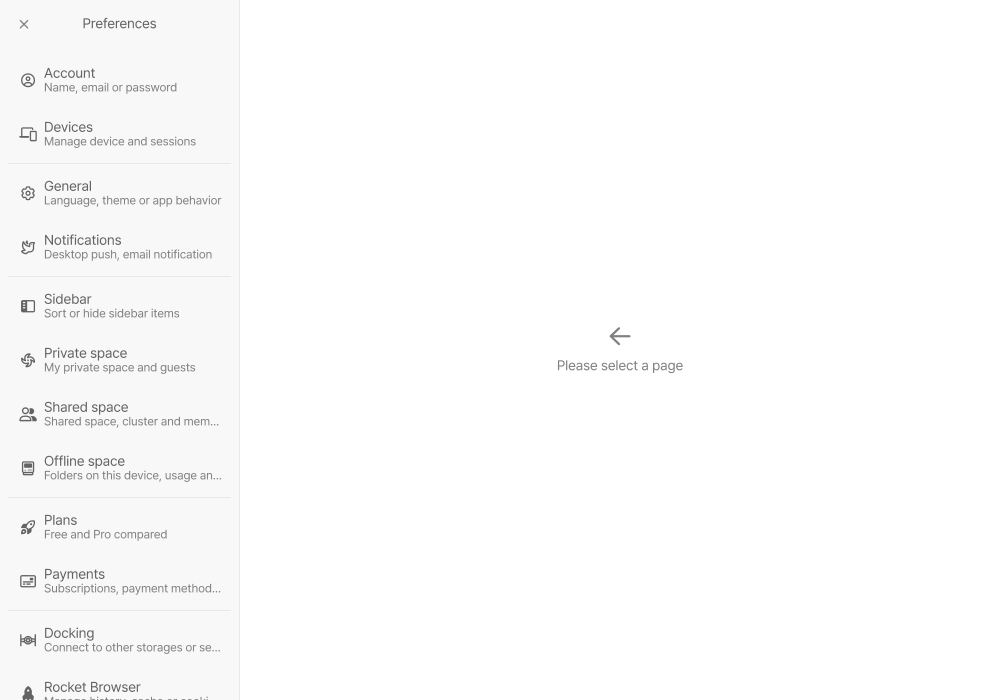
Section titled “Introduction”In Preferences, you can change how you use Stelllink in one place: your account details, how things are displayed, how the sidebar is organized, Space management, and connections to external services.
Open Preferences by pressing Ctrl + ,Cmd + ,. You can also click your account at the top of the sidebar and click the gear-shaped Preferences button in the window that opens.
| Menu | Description |
|---|---|
| Account, Devices | Manage your profile, name, email, password, and sign-in methods, and check the devices you’re signed in on. |
| General, Notifications | Set how the app behaves, such as language, theme, color, and how Items are displayed, and choose how you get notifications. |
| Sidebar, Private space, Shared space, Offline space | Set the order and visibility of the sidebar, and manage Spaces, Clusters, members, and the folders connected on this device. |
| Docking, Rocket Browser, API Keys | Connect Google Drive, and manage Rocket Browser data and API keys. |
Account
Section titled “Account”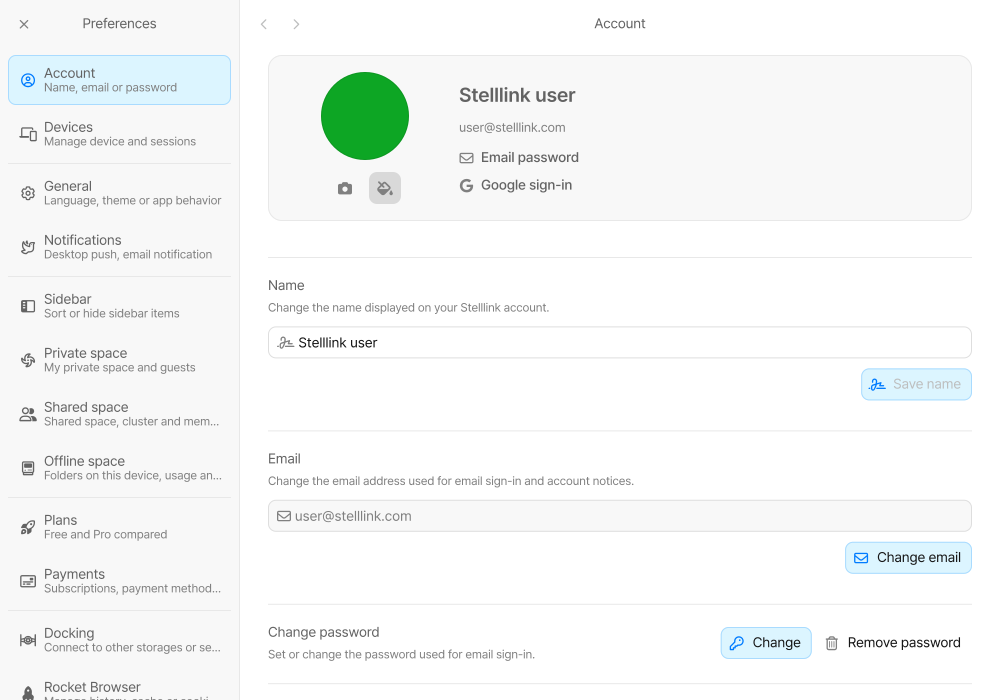
- Profile photo: Click the photo button and choose Upload photo to upload a photo and adjust its position. If you’ve connected Google Drive, you can also use your Google profile photo, and remove it with Remove photo. If you have no photo, choose a profile color with Set a color.
- Name: Change the name shown in Stelllink and click Save name.
- Email: Click Change email and enter the 6-digit code sent to your new email address to change your email.
- Change password: Set or change the password for signing in with email. If you delete your password, you’ll sign in with an email verification code from then on.
- Sign-in methods: Check the email, Google, and Apple sign-in methods linked to your account. Add a sign-in method with Connect email, Connect Google, or Connect Apple, or remove one with Disconnect. You can’t remove your last sign-in method.
Sign out and delete your account
Section titled “Sign out and delete your account”- Sign out this session: Signs you out only on the device you’re using now.
- Sign out all accounts: Signs out every account on every device.
- Sign out of other devices: Sign out of each device separately in Devices.
To delete your account, click Delete account at the bottom of the Account screen, enter your primary email, then enter the verification code sent to that email.
Devices
Section titled “Devices”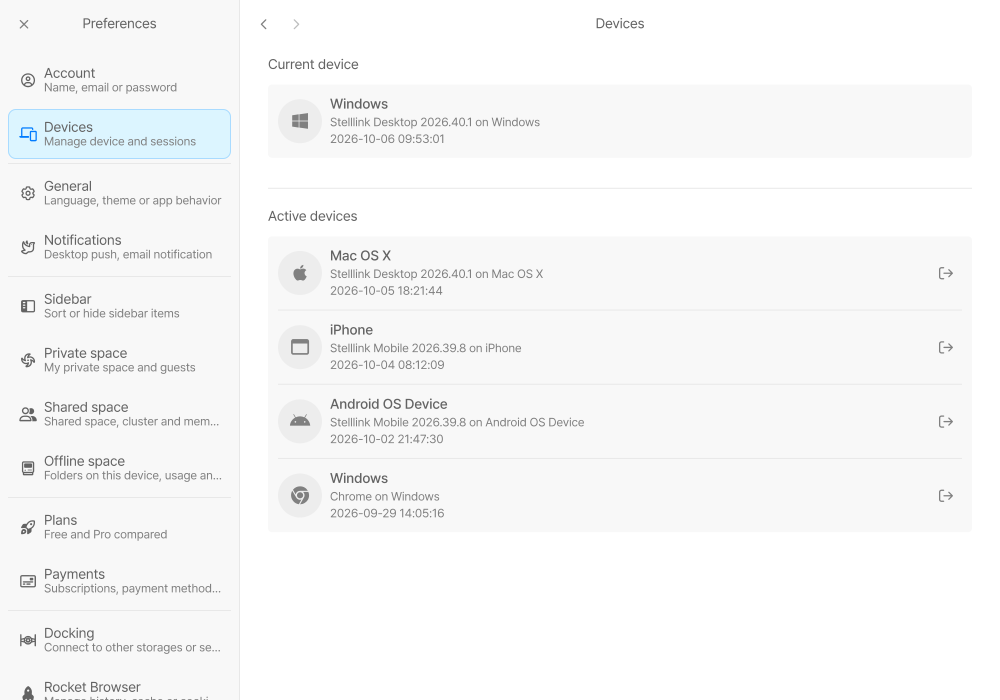
In Devices, check the devices signed in to your account. Current device shows the device you’re using now, and Active devices lists your other devices, most recently used first.
Each device shows its type, the app or browser it’s signed in with, and when it was last used. If you see a device you don’t recognize or no longer use, click the Sign out on this device button next to it to sign it out.
General
Section titled “General”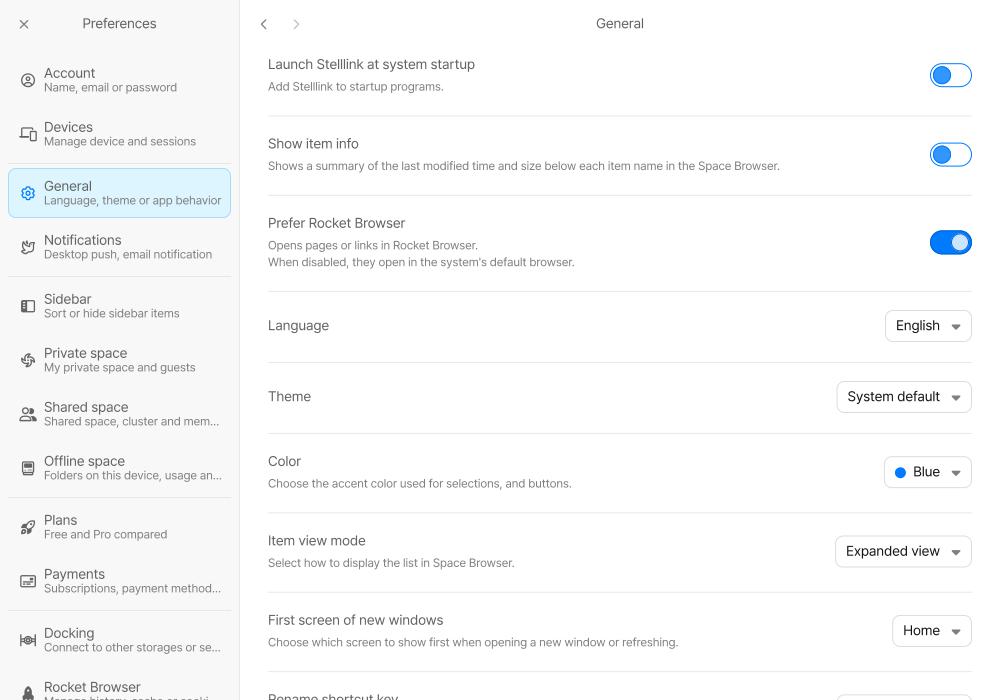
| Setting | Description |
|---|---|
| Launch Stelllink at system startup | When on, Stelllink starts automatically when you sign in to your computer. |
| Start hidden when launched at startup | When on, Stelllink starts in the tray without opening a window when it launches automatically. Shown when Launch Stelllink at system startup is on. |
| Language | Choose the language Stelllink is shown in: 한국어, English, or 日本語. |
| Theme | Choose System default, Light mode, or Dark mode. |
| Color | Choose the accent color used for selections and buttons. |
| Item view mode | Show lists in the Space Browser with Compact view or Expanded view. |
| Show item info | When on, the last modified time and size appear under each Item’s name. |
| Prefer Rocket Browser | When on, pages and Web-Links open in Rocket Browser; when off, they open in your device’s default browser. On the web, they always open in a new browser tab. |
| First screen of new windows | Choose the screen shown first when you open a new window or reload: Home, Reports, or a Cluster. |
| Item delete shortcut key | Choose the shortcut for moving Items to the trash. |
First screen of new windows and Item delete shortcut key aren’t shown in the mobile app. You can also change Item view mode and Show item info right from the more menu in the Space Browser’s top bar. For the layout of the Space Browser, see the Space Browser page.
Launch Stelllink at system startup and Start hidden when launched at startup appear only in the desktop app and are saved separately on each device. When Stelllink starts hidden, click Open Stelllink in the tray icon menu or launch Stelllink again to open its window. If you need to sign in or there’s a connection problem, the window opens right away. If automatic launch is turned off for Stelllink in your system settings, this screen shows a notice. Allow it under Startup apps (Login Items) in your system settings.
Notifications
Section titled “Notifications”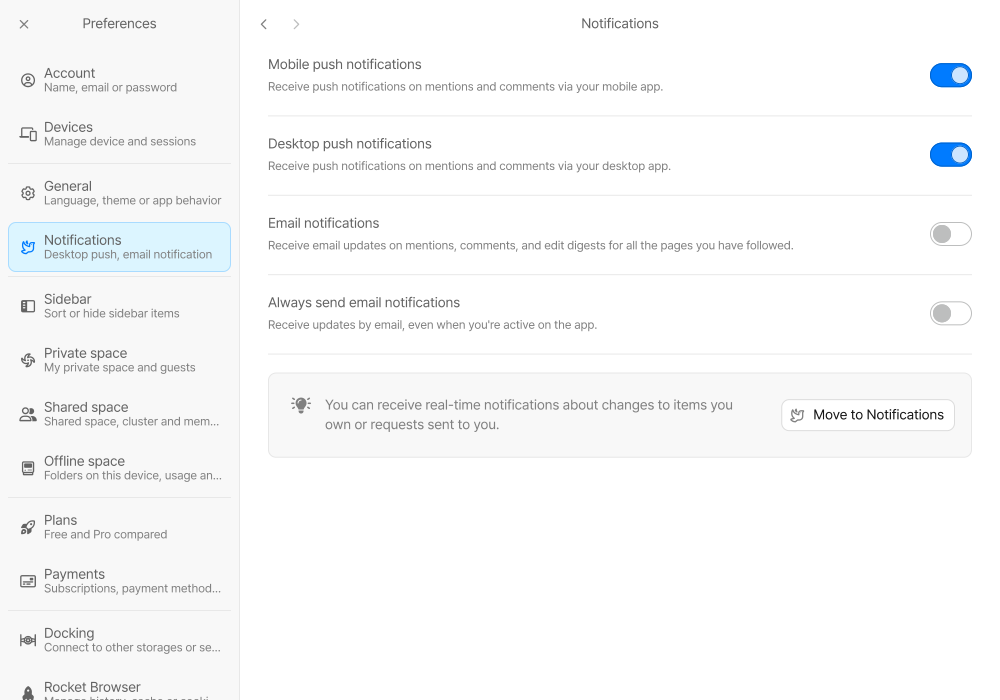
| Setting | Description |
|---|---|
| Mobile push notifications | Get push notifications for mentions and comments in the mobile app. |
| Desktop push notifications | Get push notifications for mentions and comments in the desktop app. |
| Email notifications | Get emails about mentions, comments, and edit summaries for pages you follow. |
| Always send email notifications | Get notification emails even while you’re active in the app. |
Click Move to Notifications to open the notifications window. There you can follow changes to Items you own and requests sent to you, such as Space invitations and permission requests, in real time. For details, see Notifications in Additional Features.
Sidebar
Section titled “Sidebar”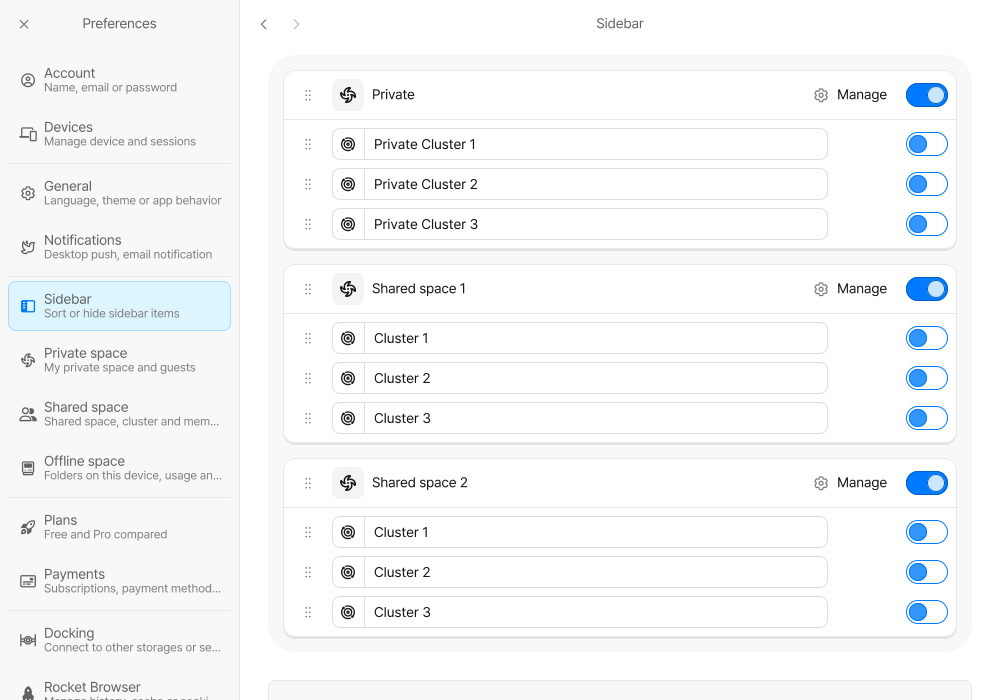
In the Sidebar menu, choose how the Spaces and Clusters you belong to appear in the sidebar. The order and visibility you set here apply only to you.
- Reorder: Drag the handle of a Space or Cluster to change its order.
- Show: Turn off Show for Spaces or Clusters you rarely use to hide them from the sidebar. Hidden ones stay in the list so you can turn them back on any time.
- Icon and name: Change a Cluster’s icon, color, and name. Only the Space’s Super admins and Admins can rename a shared Cluster.
- Manage: Click a Space’s Manage button to go to that Space’s settings.
Offline spaces are in this list too, so you can change their order, visibility, icon, and name here.
Private space
Section titled “Private space”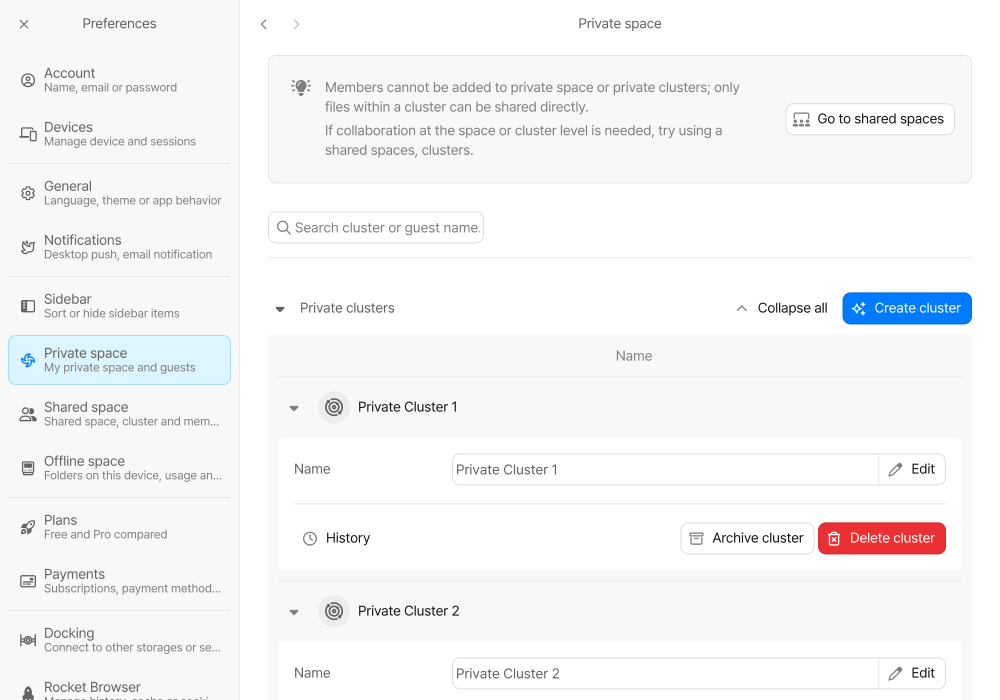
In Private space, manage your own Private clusters. You can’t add members to a Private space or its Clusters; you can only share files inside a Cluster directly. To work together on a whole Space or Cluster, click Go to shared spaces and use a Shared space.
- Create cluster: Creates a new Private cluster.
- Name: Expand a Cluster and click Edit to rename it.
- History: Check the Cluster’s change history.
- Archive cluster: Archives a Cluster you’re not using for now. Click Unarchive cluster to bring it back.
- Delete cluster: Permanently deletes the Cluster and all files and data in it. To delete an archived Cluster, unarchive it first.
Under Guests, check the people you’ve shared Items in your Private space with and how many Items each one can access. Click Unshare to stop sharing with a guest, or Remove all guests to stop sharing with everyone at once. Use the search box to find Clusters or guests by name.
Shared space
Section titled “Shared space”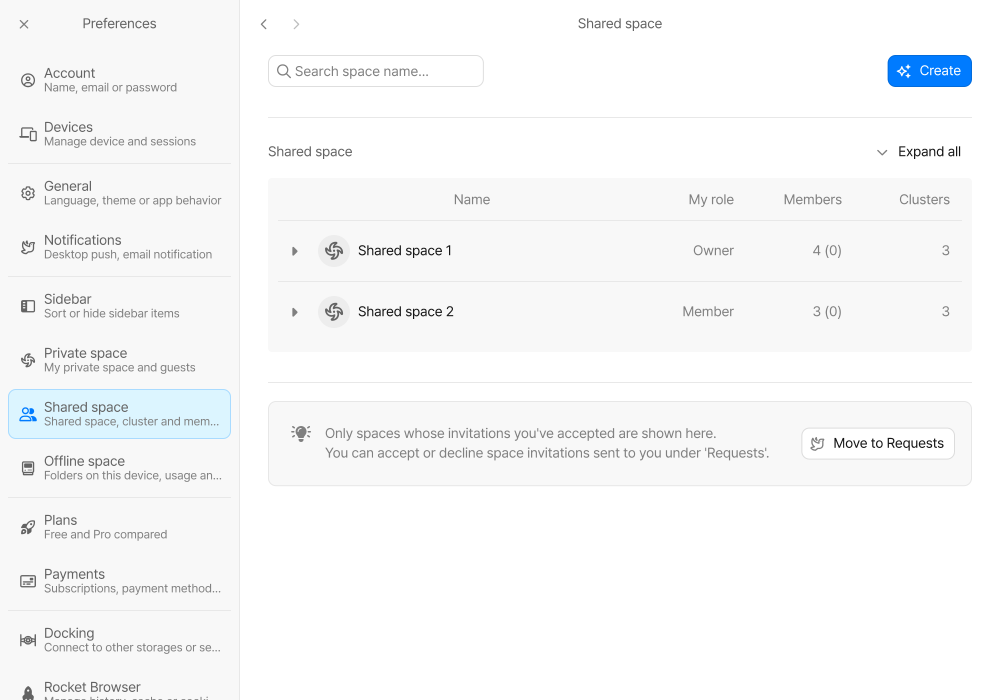
In Shared space, check the Shared spaces you belong to, along with your role and the number of members and Clusters in each. Click Create to make a new Shared space, and use the search box to find a Space by name.
Expand a Space to use the following, depending on your role.
- Space name: Click Edit to rename the Space.
- Manage members: Add members who can access the Space or manage its settings.
- Manage guest: Check outside users who can access files or pages shared with them individually. Guests can’t open the Space or its shared Clusters.
- Manage clusters: Manage the Space’s shared Clusters and the members who use them.
- History: Check the Space’s change history.
- Leave space, Delete space: Leave the Space, or delete it entirely.
Only Spaces whose invitations you’ve accepted appear in the list. Click Move to Requests to accept or decline invitations you’ve received. For details on managing Spaces, Clusters, and members, see the Spaces and Items page.
Each management feature opens in its own window. Owners, Super admins, and Admins can make changes there; other members can only view.
Manage members
Section titled “Manage members”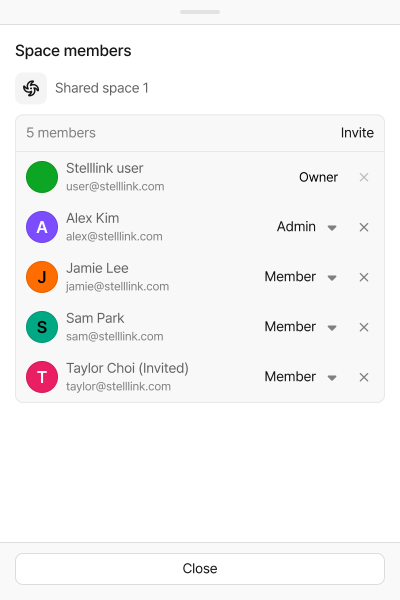
Click Manage members to see everyone in the Space and their roles.
To invite members:
- Click Invite at the top of the member list.
- Search for a user, or enter an email address. You can add several people at once.
- Choose Admin or Member as the role, then click Invite.
Invited people appear with (Invited) next to their name until they accept the invitation in Requests in Notifications. You can also invite people who haven’t signed up for Stelllink yet by email.
- Change a role: Choose Owner, Admin, or Member from the menu next to a member. In Spaces connected to Google Workspace, choose Super admin, Admin, or Member.
- Remove a member: Click the Unshare button next to a member, then click Unshare again to confirm.
A Space always needs at least one Super admin, so the last Super admin’s role can’t be changed and they can’t be removed. You also can’t remove yourself; use Leave space instead. For what each role can do, see Space roles.
Manage guests
Section titled “Manage guests”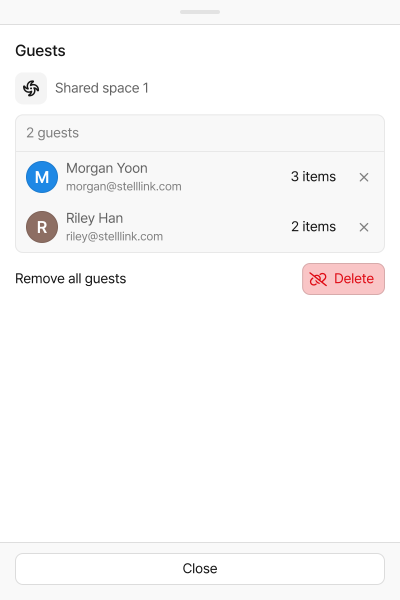
Click Manage guest to see the Space’s guests and how many Items each one can access. Guests are people outside the Space who were given access to individual files or pages in it. They can’t open the Space or its shared Clusters.
- Unshare: Click the Unshare button next to a guest to stop sharing with them.
- Remove all guests: Click Delete to stop sharing with every guest at once.
To learn how to share Items with others, see the Short Link page.
Manage clusters
Section titled “Manage clusters”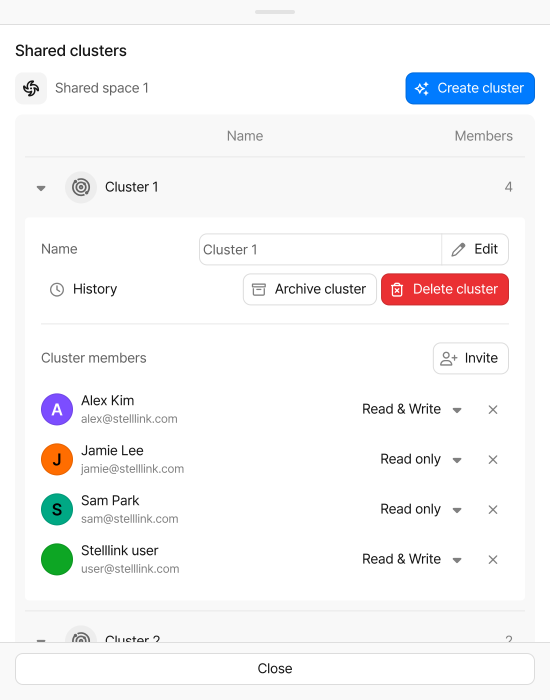
Click Manage clusters to manage the Space’s shared Clusters. Click Create cluster and enter a name to make a new one. Expand a Cluster to use the following.
- Name: Click Edit to rename the Cluster.
- History: Check the Cluster’s change history.
- Archive cluster: Archives a Cluster you’re not using for now. Click Unarchive cluster to bring it back.
- Delete cluster: Enter the Cluster name to confirm. Files and activity history in the Cluster are deleted right away and can’t be restored. To delete an archived Cluster, unarchive it first.
Joining a Space doesn’t give a member access to its Clusters. To let members use a Cluster, invite them in Cluster members.
- Expand the Cluster and click Invite in Cluster members.
- Choose people from the Space’s members. Only Space members can be invited to a Cluster.
- Choose Read only or Read & Write as the permission, then click Invite.
To change a member’s permission, choose it from the menu next to them. Click Unshare to remove someone from the Cluster; they stay in the Space as a member.
Offline space
Section titled “Offline space”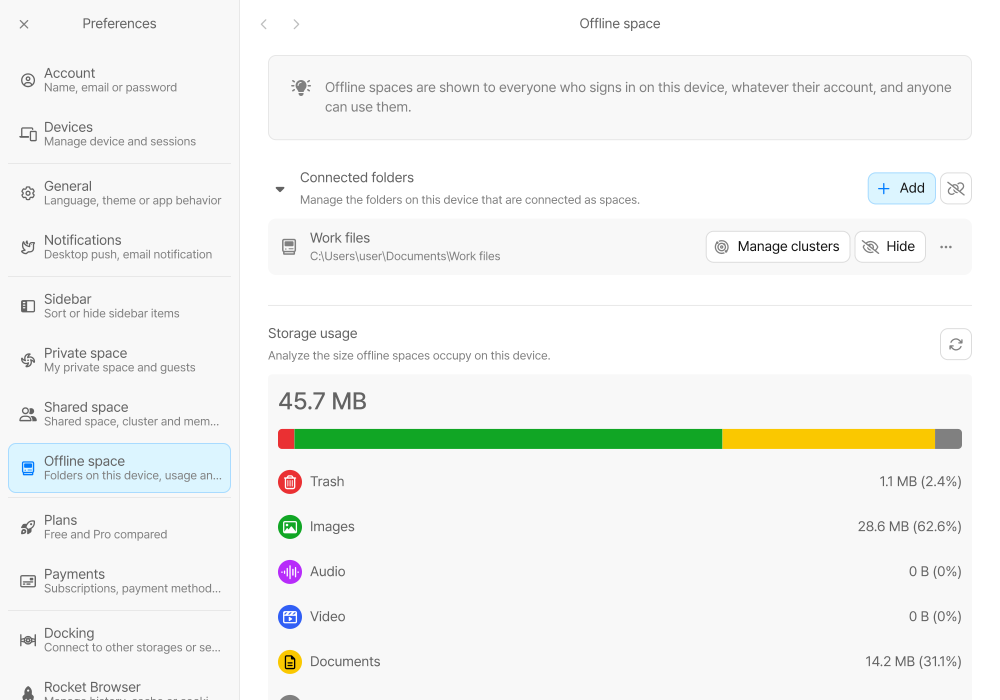
Offline space manages the folders on this device that you’ve connected as Spaces. It appears only in the desktop and mobile apps, not in the web version.
- Connected folders: Click Add to connect a new folder. For each folder, use Manage clusters, Hide, and Rename, Move to another location, and Remove space from the More menu.
- Storage usage: Check how much space Offline spaces take up on this device, by type.
- Clear trash: Permanently deletes the trashed Items of every Offline space from the disk.
Connected folders appear for every account signed in on this device, regardless of the account. For details on connecting and managing folders, see the Offline Spaces page.
Docking
Section titled “Docking”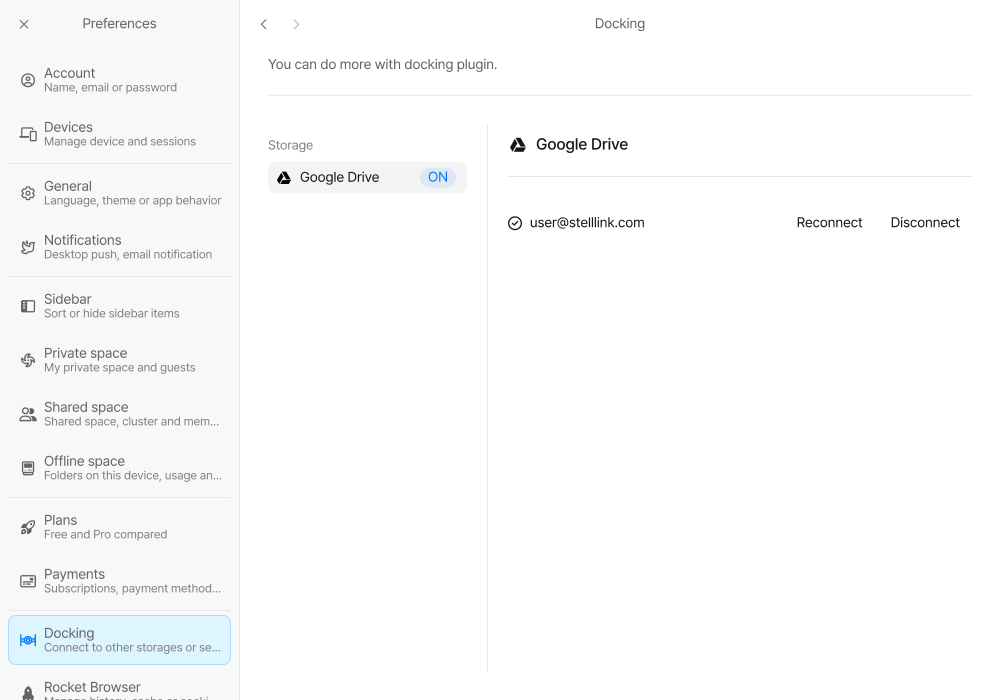
Docking connects Google Drive to Stelllink. Files you upload and offline documents you create in Stelllink are stored in the connected Google Drive, so connect Google Drive first to save files and pages.
- In Docking in Preferences, click Connect Google Drive.
- Choose your Google account and allow Stelllink access.
- Once connected, the linked Google account is shown.
A {Stelllink} folder is created in Google Drive, with folders for each Space and Cluster inside it where your files are stored.
- Reconnect: If Token expired - reconnection required appears or file uploads don’t work, click Reconnect to connect again.
- Disconnect: Disconnects Google Drive. Files and folders stored in Google Drive aren’t deleted when you disconnect.
Rocket Browser
Section titled “Rocket Browser”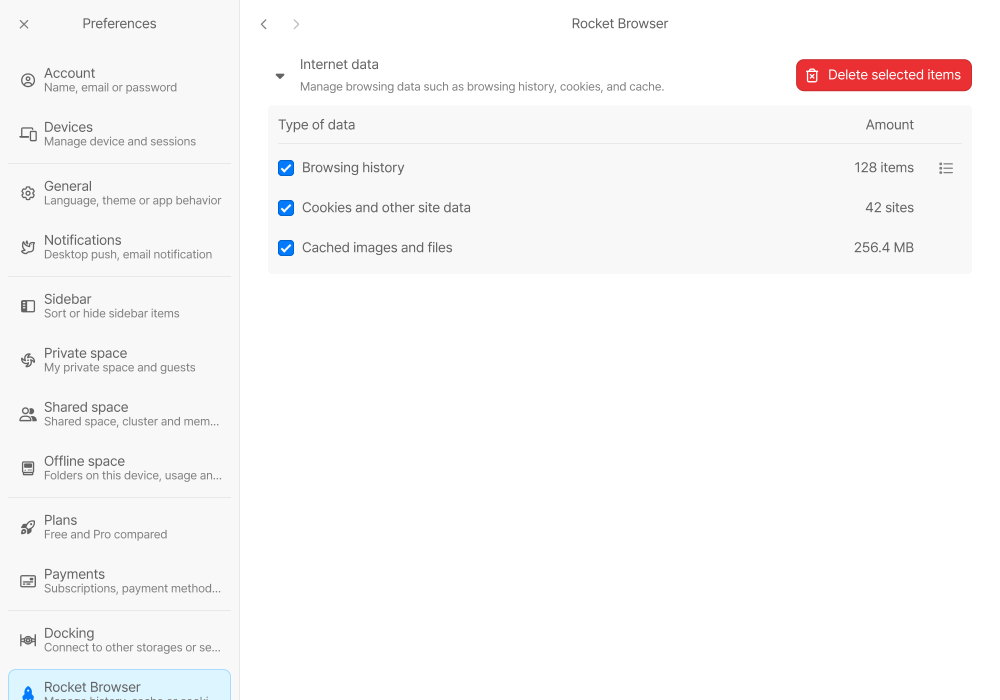
The Rocket Browser menu appears only in the desktop app. In Internet data, check how much browsing history, cookies and other site data, and cached images and files Rocket Browser has stored.
Select the data you want to remove and click Delete selected items. Deleted data can’t be recovered, and you need to reload open tabs for the change to apply. Click the Details button next to Browsing history to look through your browsing history. For details, see the Rocket Browser page.
API Keys
Section titled “API Keys”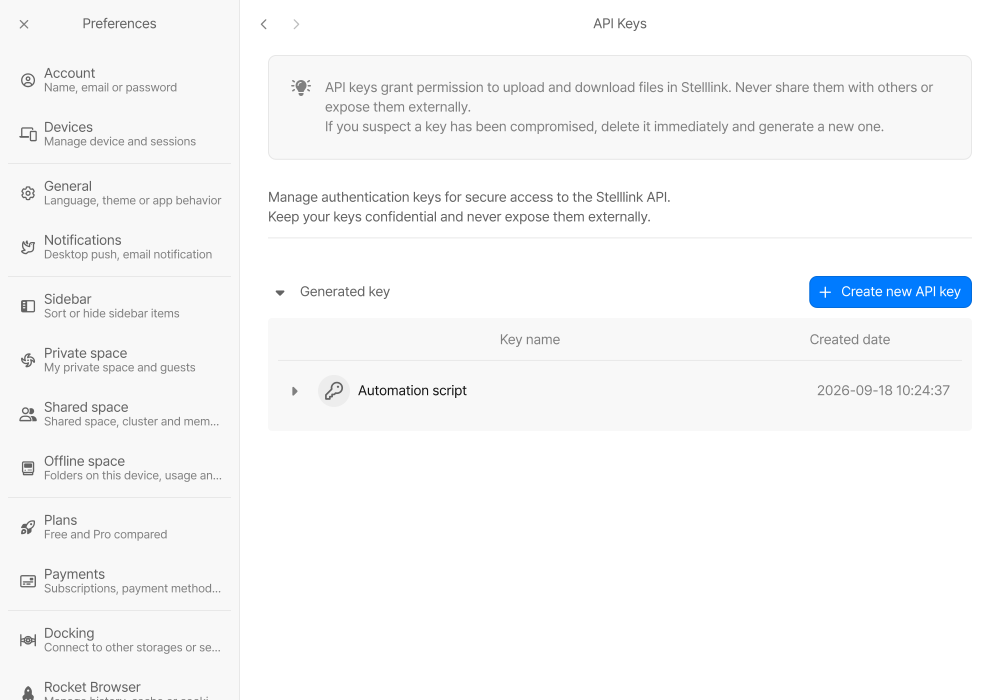
API keys let you upload and download files in Stelllink through the Stelllink API.
- Click Create new API key.
- Enter a name for the key and click Create key.
- Click Copy and keep the key somewhere safe. For security, the key is shown only once and can’t be recovered if you lose it.
Keys you create are listed with their name and creation date. Expand a key to see its name and the beginning of its token. A key expires 90 days after it’s created, so create a new one before then.