

Short Link
Introduction
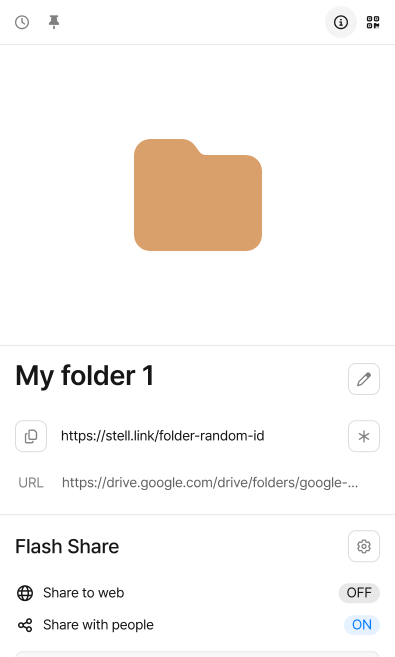
Section titled “Introduction”Every Item in Stelllink automatically gets a unique short link starting with https://stell.link/. Instead of a complicated path or a long address, you can send files, folders, pages, and Web-Links with one short link, and use the same link as a QR code or to check visit statistics.
| Feature | Description |
|---|---|
| Short link | Copy an Item’s short link right from the preview panel. |
| Customize Stelllink | Change the short link’s ID to a value you choose and set an expiration date. |
| QR code | Save the short link as a QR code and decorate it with a logo and colors. |
| Flash Share | Share to the web or with specific people only, and set permissions and a password. |
| Link Tracker | See when, where, and in what environment your short link and QR code were opened. |
Copy a short link
Section titled “Copy a short link”- In the Space Browser, select the Item you want to share.
- Click the short link shown under the name in the preview panel, or click the Copy Stelllink button.
- Paste the copied link into chat, email, or a document to send it.
Select several Items and click Copy Stelllink, or press Ctrl + CCmd + C, to copy the names and short links of all of them at once as a list. Dragging Items out of Stelllink also pastes their short links.
What people see when they open a short link
Section titled “What people see when they open a short link”What someone sees when they open a short link depends on the kind of Item and its sharing settings.
- Web-Links: The original web page opens right away.
- Folders: A shared view opens in the web browser, where they can browse the folder’s contents. If Share to web is off, only people with permission to the folder can view it after signing in.
- Files and pages: Anyone can open them when Share to web is on. When it’s off, only people with permission for the Item can open them after signing in.
Customize Stelllink
Section titled “Customize Stelllink”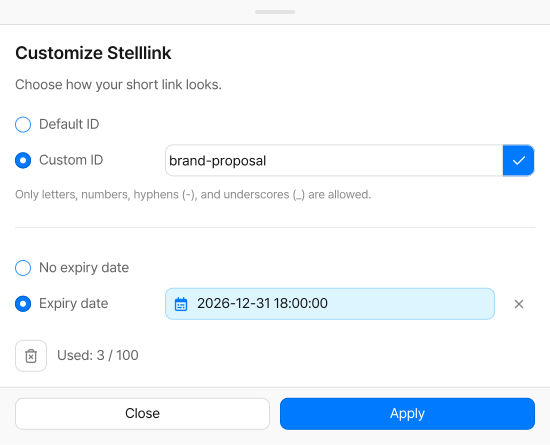
You can use the automatically created short link as is, or change it to an address that’s easy to remember or one that only works for a set period. Click the Customize Stelllink button next to the short link in the preview panel.
- Custom ID: Change the end of the short link to a value you choose. For example, make an address like
stell.link/brand-proposalthat tells the recipient what to expect. Enter the ID using letters, numbers, hyphens (-), and underscores (_), then click Check ID to see if it’s available. - Expiry date: Set a date and time, and the short link stops opening after that. Items with an expiration date show Expiration and the time remaining in the preview panel.
- Delete custom id: Removes the customization and goes back to the default short link.
When you’re done, click Apply. The original default short link keeps working after you apply a custom ID, and the expiration date applies to both links. Customize Stelllink is available for Items you have Read & Write permission for.
QR code
Section titled “QR code”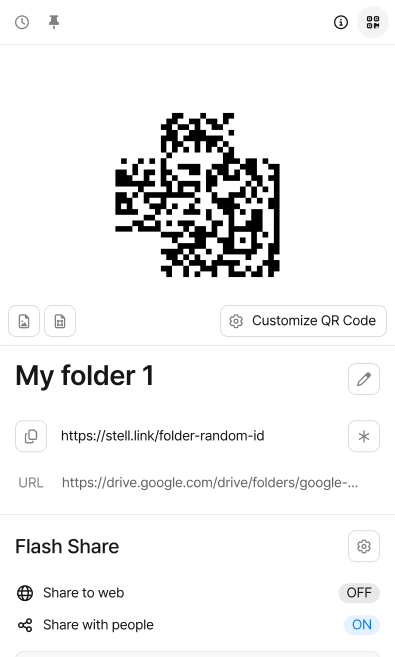
Every Item also comes with a QR code that leads to its short link. Click the QR Code button at the top of the preview panel to show the QR code in place of the preview.
- Save as PNG image, Save as SVG image: Download the QR code as an image.
- Customize QR Code: Decorate the QR code with the design you want. If you have a customized QR code, you can also download the default one separately with Save plain QR code.
Customize QR Code
Section titled “Customize QR Code”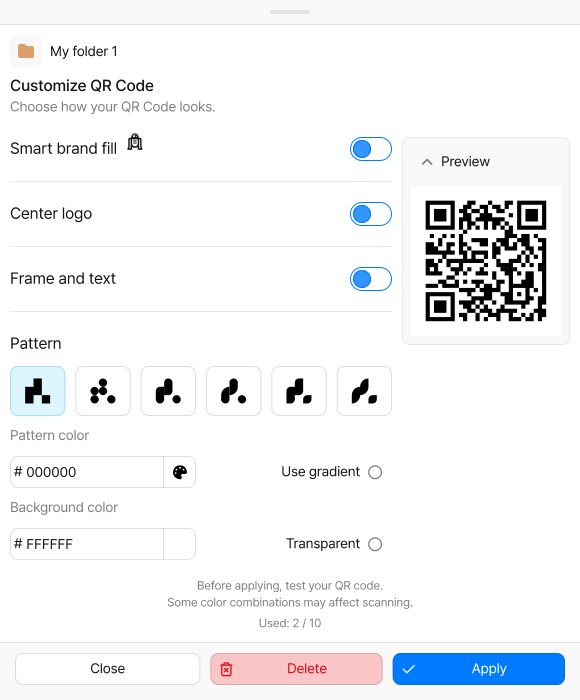
Click Customize QR Code below the QR code to open a window where you can decorate it. Turn on and adjust the options below, check the result in Preview, and then click Apply. Click Delete to remove the custom design and go back to the default QR code.
| Option | Description |
|---|---|
| Smart brand fill | Upload a brand image and finish a matching QR code with AI. |
| Center logo | Put a service logo such as YouTube or Instagram, or your own logo, in the middle of the QR code. |
| Frame and text | Add a frame around the QR code and a message. |
| Pattern | Change the shape and color of the dots, gradients, and the background color. |
| Corners | Change the shape and color of the three corner markers. |
Sharing preferences
Section titled “Sharing preferences”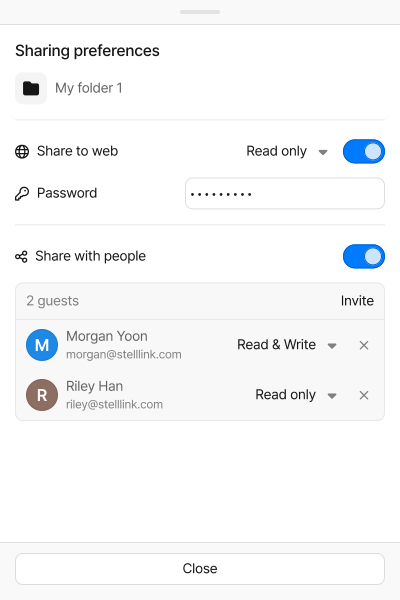
Check an Item’s sharing status under Flash Share in the preview panel, and change how it’s shared with the gear-shaped Sharing preferences button. Anyone with Read & Write permission can change sharing preferences. Web-Link Items don’t have sharing preferences.
Share to web
Section titled “Share to web”Turn on Share to web to let people without a Stelllink account open the Item with its short link. This is useful for sending resources to people who don’t use Stelllink, such as external partners or clients.
- Permission: Choose Read only or Read & Write.
- Password: Enter a password to require it when the Item is opened with its short link. Clear the password to remove it.
When you share a folder to the web, the Items inside it are shared too. Items in the folder whose sharing status or permission differs from their parent folder get a mark: a globe for Items shared to the web, and a lock for Items excluded from sharing. When you no longer need to share, turn off Share to web to block access through the link at any time.
Share with people
Section titled “Share with people”To share an Item with specific people only, turn on Share with people, click Invite, then search for a user or enter an email address.
- You can set Read only or Read & Write permission for each person.
- Invited people get an email and an in-app notification. Once they accept, the shared Item appears as an alias in their Reports > Shared inbox; until then, they appear as Invited in the list.
- Click the Unshare button next to someone in the list to remove their permission right away.
- Turning off Share with people pauses only this kind of sharing and leaves Share to web as it is.
Users outside the Space who were given access to Items this way are shown as Guests. Items in a shared Cluster are automatically shared with the Cluster’s members, shown as Cluster members: Auto shared in Flash Share. For more about guests and Cluster members, see the Spaces and Items page.
What recipients see
Section titled “What recipients see”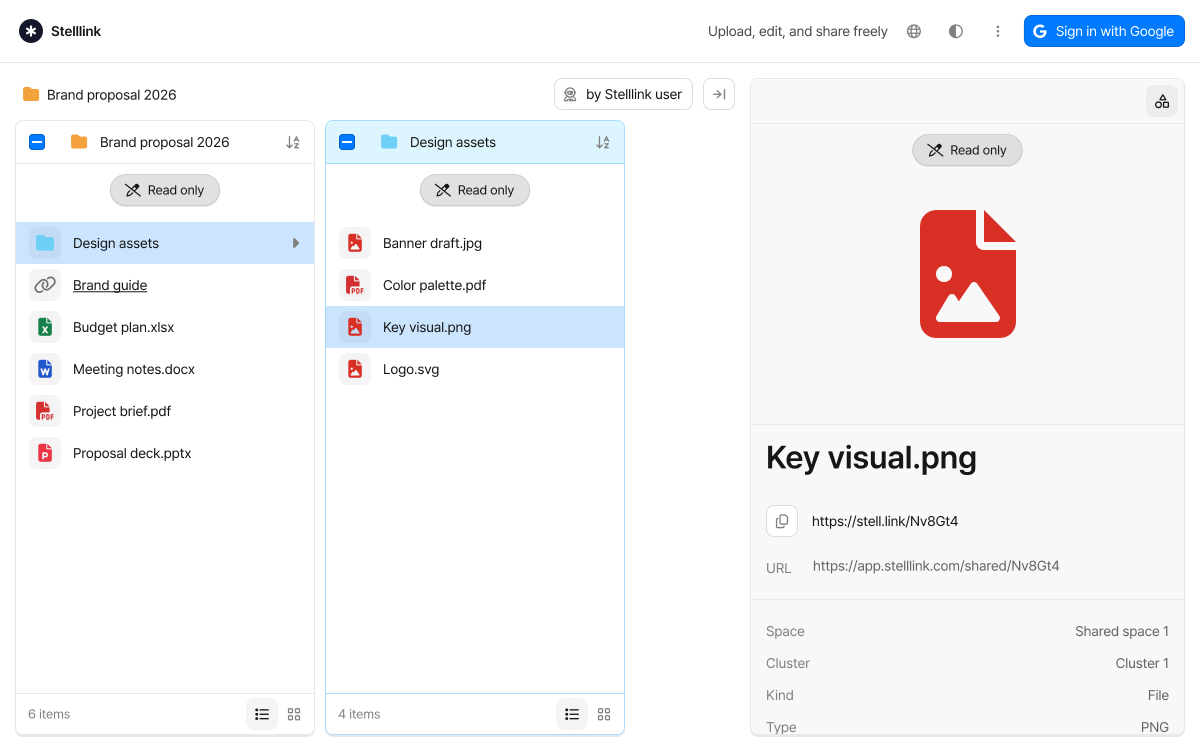
When someone opens the short link of a folder shared to the web, they can browse its contents in a web browser on a screen similar to Stelllink.
- They can open folders to explore what’s inside, and check each Item’s content and short link in the preview panel.
- Files can be downloaded with Download. Folder downloads are available in the Stelllink app.
- Items with a password need the password to open. After 3 wrong attempts, they have to wait a moment before trying again.
- Open in Stelllink Browser in the menu opens the folder in Stelllink. If they can’t access the folder directly, it’s saved as an alias in Open Space in the sidebar, so they can open it again any time.
Link Tracker
Section titled “Link Tracker”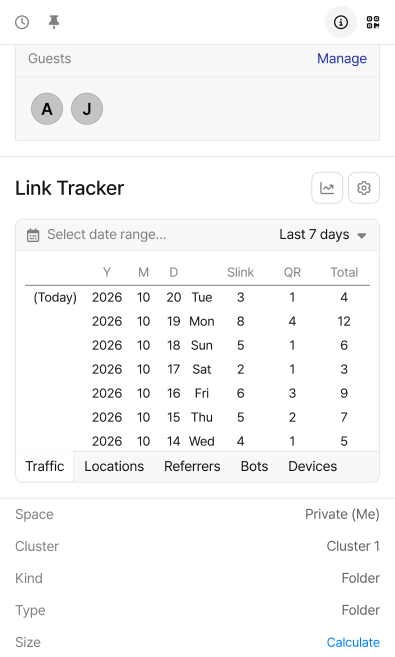
Turn on Link Tracker to see how often, where, and in what environment an Item’s short link and QR code were opened. It’s useful for checking whether a proposal you sent was actually opened, or for reviewing how a campaign QR code performs.
- Select the Item and click Tracker preferences under Link Tracker in the preview panel.
- Turn on Use Link Tracker.
- Once the short link gets visits, the records appear in the preview panel.
In the preview panel, choose a period from Today, Yesterday, Last 7 days, Last 30 days, Last 90 days, and All time, or enter your own dates.
| Tab | What it shows |
|---|---|
| Traffic | Visits by date, split into short link and QR code visits. |
| Locations | The countries and cities visits came from. |
| Referrers | The sites or services where the link was opened. |
| Bots | Visits from search engines and link-preview bots, shown separately. |
| Devices | Device type, operating system, and browser. |
Chart view
Section titled “Chart view”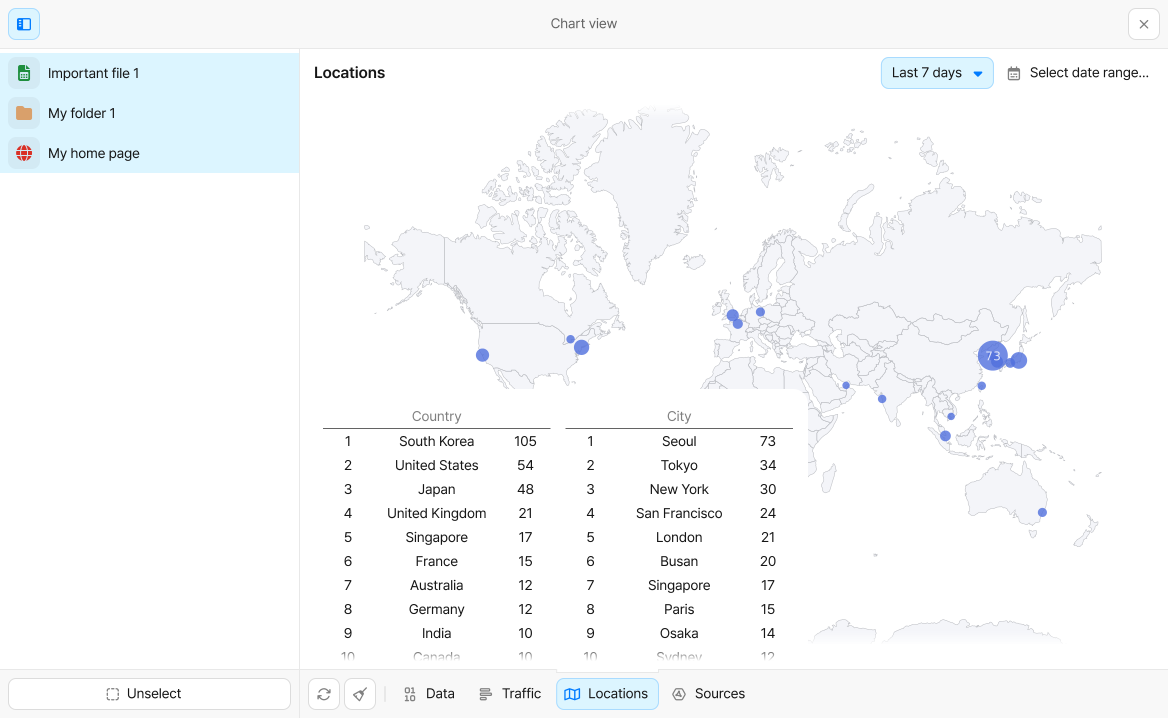
Chart view brings visit records from several Items together in a chart so you can compare them. Click Chart view in the preview panel to open a chart for the selected Item. Then select another Item with Link Tracker turned on and click Add to chart view at the bottom of the screen to add it to the same chart.
- Data: See total visits and visits by short link and QR code at a glance.
- Traffic: Compare visits sorted by date or by Item.
- Locations, Sources: Check where visits came from, along with device, operating system, browser, and referrer.
The daily visit table on the Data tab doesn’t include bot visits. Select or deselect Items in the list to compare only the ones you want.
See everything in Reports
Section titled “See everything in Reports”Reports in the sidebar gathers shared Items scattered across Spaces and Clusters in one place. It’s useful for cleaning up sharing you no longer need, or for seeing all Items with Link Tracker turned on.
- Shared: View Shared to web, Shared by me, Shared with me, and Shared with guests separately.
- Custom ID: View Items using Customize Stelllink.
- QR Code: View Items using a Static QR Code or a Custom QR Code separately.
- Link Tracker: View Items with Link Tracker turned on.
- Shared inbox: View every Item others have shared with you.