

Getting Started
Introduction
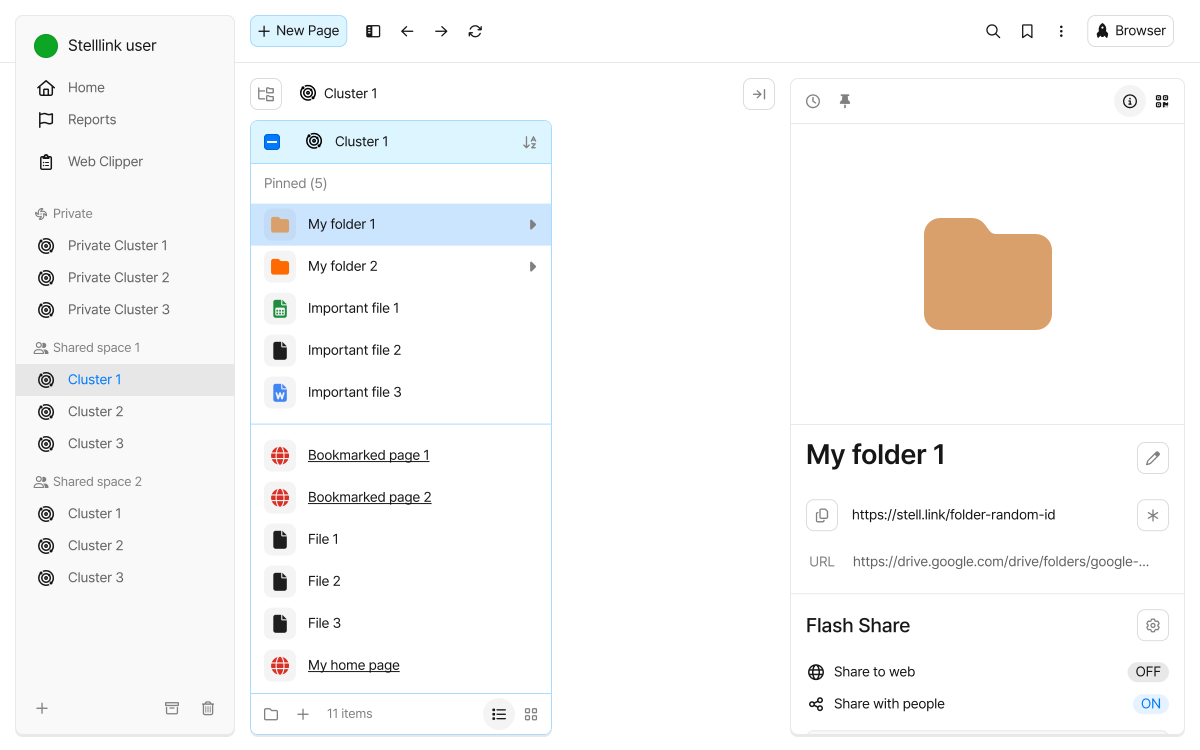
Section titled “Introduction”Stelllink is a desktop workspace that brings scattered digital resources such as web pages, files, documents, and images together in one place so you can collect, organize, explore, and share them.
It goes beyond simply storing files: it connects the whole flow of organizing resources in a clear structure, finding them again quickly, and sharing them with your team.
Because Stelllink brings collecting, finding, and sharing into a single space, its benefits grow the more your browser tabs, links in chat, local files, and team documents are spread across different places.
Before You Begin
Section titled “Before You Begin”- Stelllink is available as a desktop app for Windows and macOS, a mobile app for Android and iOS, and a web version.
- You can sign in with Google, Apple, or email verification.
- After signing in, you can create a Space and start saving resources right away.
- You can upload files with drag & drop.
- You can quickly save a Web-Link by copying its URL and pasting it into the app.
Using Stelllink
Section titled “Using Stelllink”Install the app for your device, or open the web version right away.
How to Sign In
Section titled “How to Sign In”You can sign in to Stelllink in the following ways:
- Sign in with a Google account
- Sign in with an Apple account
- Sign in with an email address and verification code
Choose your preferred method on the sign-in screen and follow the instructions to complete verification. Once you’re signed in, you can go straight to the Home screen and your workspace.
Understand the Core Structure
Section titled “Understand the Core Structure”Stelllink manages your resources and sharing through a structure of Spaces and Clusters.
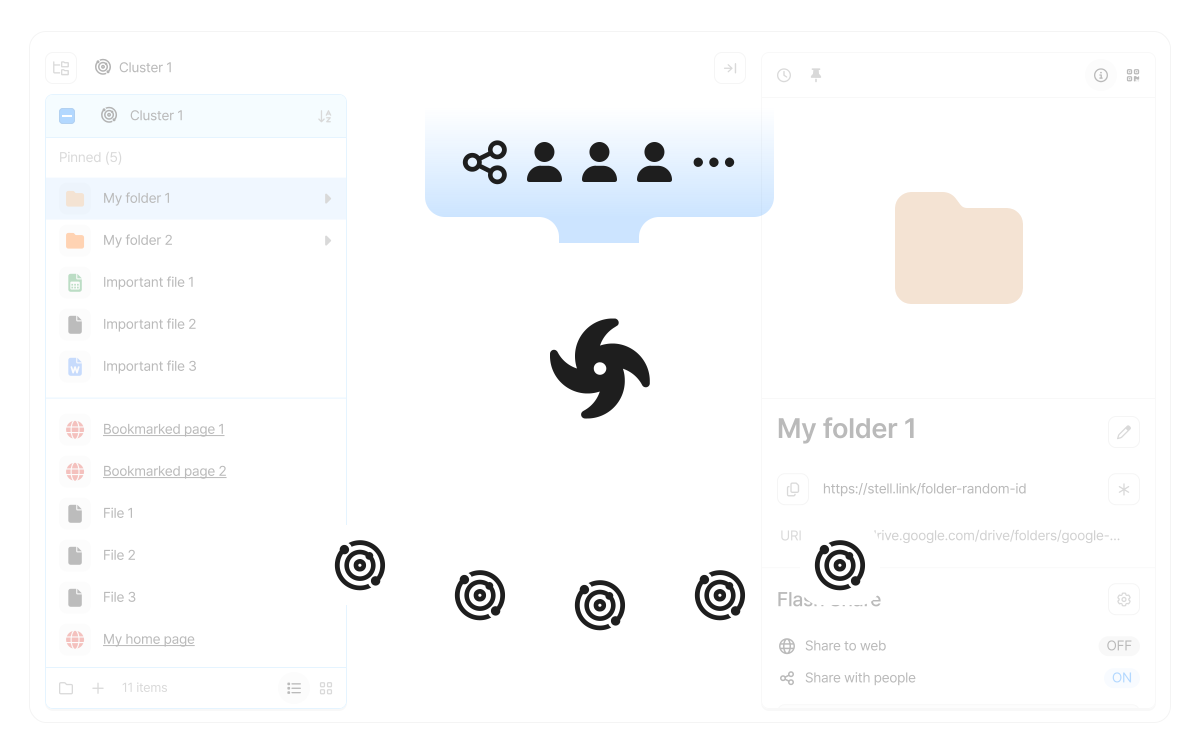
A Space is the largest grouping that bundles multiple Clusters together. Through a Space, you can easily share Clusters and files with others. Create Spaces for different projects, teams, or topics to keep your work separate.
Example: “Marketing Campaign”, “Personal Research”, “Team Docs”
Cluster
Section titled “Cluster”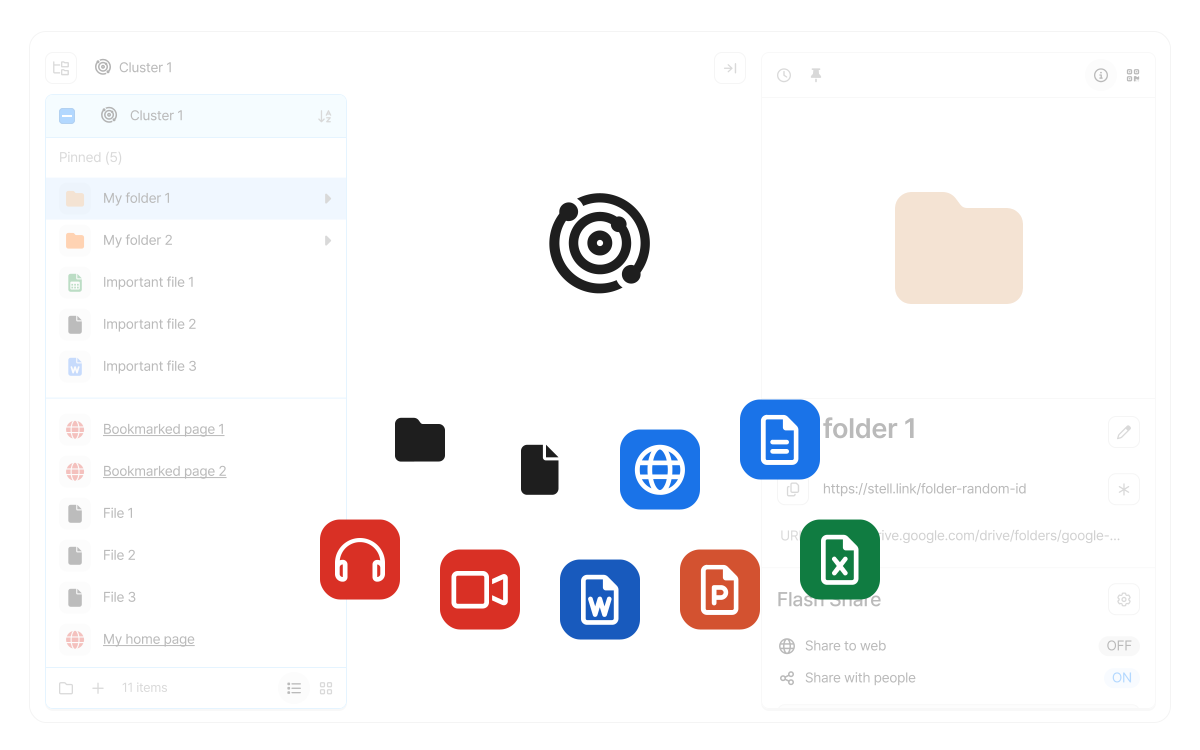
A Cluster is a cloud drive that stores your files, folders, and other Items. Create and personalize Clusters to fit your needs, and use them to group resources by topic within a Space.
Example: “Competitor Analysis”, “References”, “Ideas”
Items are the actual resources stored in a Cluster. Stelllink handles the following four types of Items:
- Files — Documents, images, PDFs, and other resources
- Folders — The basic unit for storing and organizing resources
- Pages — Outputs of web services that connect seamlessly with Stelllink
- Web-Links — Shortcuts based on a web page’s URL
Home and Path Finder
Section titled “Home and Path Finder”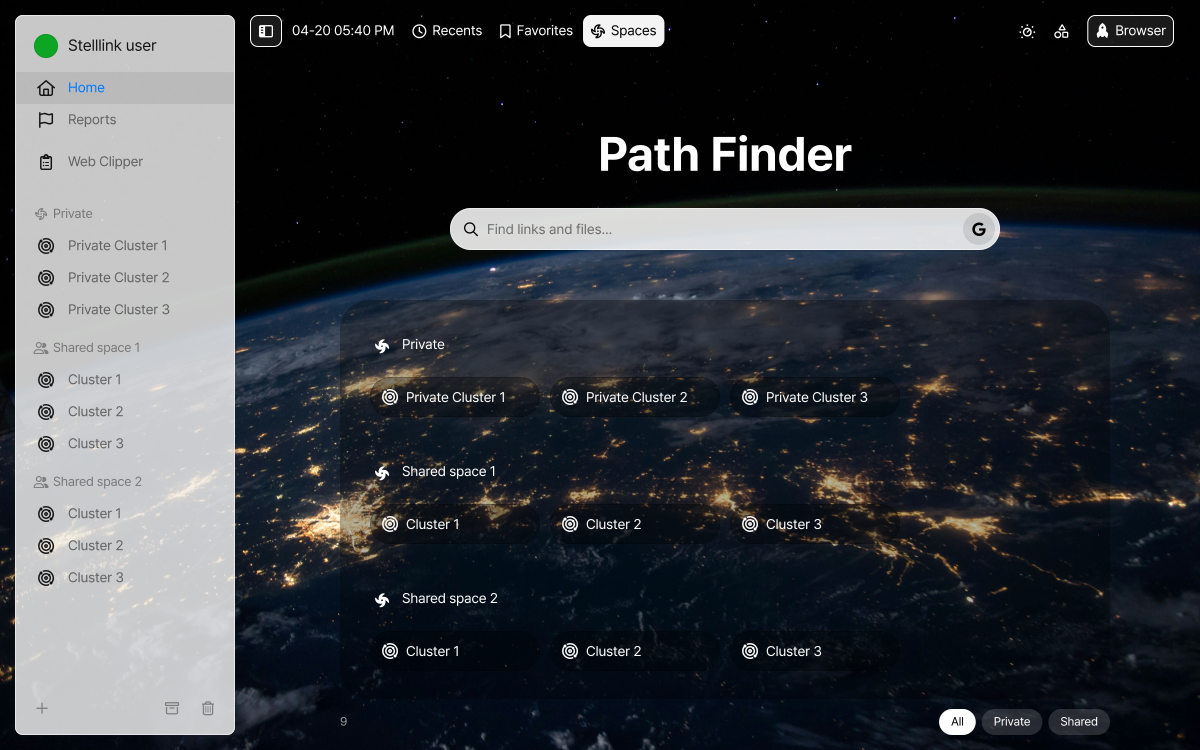
When you open the app, the Home screen appears. On the Home screen, you can see recently used Items, your favorites, and all of your Spaces at a glance.
Path Finder is a tool that helps you easily find any Item in your account. You can search only the current location or across all of your Spaces. Search results show each Item’s name together with the path where it’s saved, so you can open the Item right away or jump straight to its location.
You can search with Path Finder even if you only remember part of a title. For example, searching for proposal, meeting notes, competitor, or brand reference will find what you need, so you can focus on “What am I looking for?” instead of “Where did I save it?”
Try It Out
Section titled “Try It Out”Follow the guides below to learn how to manage your resources and start using Stelllink.
Save Files
Section titled “Save Files”Files and folders work just like the files and folders on Windows and macOS. Upload documents, images, PDFs, and other resources from your device and use them anywhere.
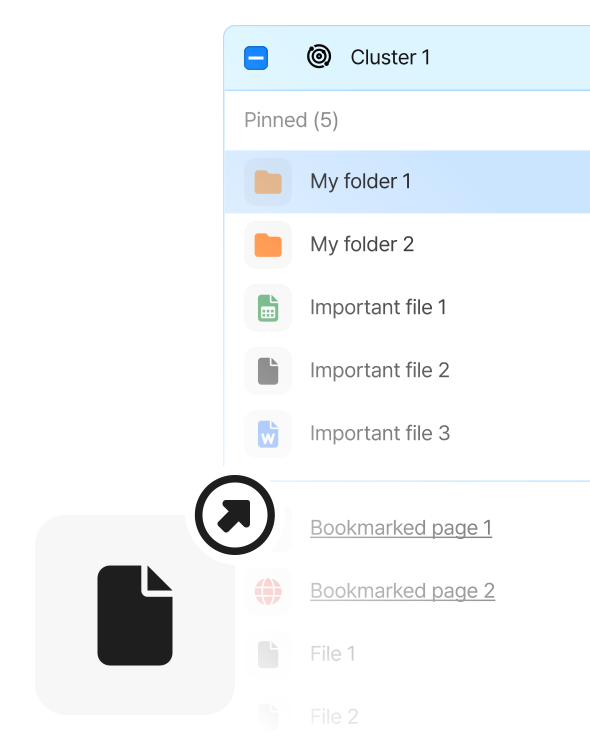
- Open the Cluster or folder where you want to save, then drag & drop files onto the screen to upload them right away.
- You can also click Upload files on the New page screen, or press
Ctrl + UCmd + Uto choose files to upload. - Files copied from File Explorer or Finder and captured images can be saved by pasting them with
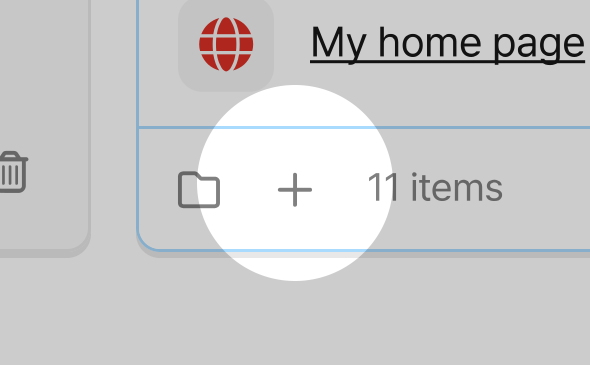
Ctrl + VCmd + Vwherever you want. - To create a folder for organizing resources, click the New folder button at the bottom of a column, or right-click an empty area of the column and choose New folder.
Save Web-Links
Section titled “Save Web-Links”A Web-Link is a shortcut to an internet page. Just like a file, you can save it anywhere you like and quickly find and open it.
Paste a URL
Section titled “Paste a URL”- Copy the address (URL) of the page you want to save in your browser.
- In Stelllink, open the Cluster or folder where you want to save it, then paste with
Ctrl + VCmd + V.
Save from Rocket Browser
Section titled “Save from Rocket Browser”Rocket Browser is the built-in browser in the Stelllink desktop and mobile apps. For more details, see the Rocket Browser page.
- Click the Browser button in the upper-right corner of the Space Browser, or press
Ctrl + Shift + BCmd + Shift + Bto open Rocket Browser. - Go to the page you want to save, then click Save this link or press
Ctrl + Shift + SCmd + Shift + S. The Web-Link is saved to the Temporary space. - From the Temporary space, drag the Web-Link onto the Cluster or folder you want, or click Move this item to current cluster/folder to move it to the location you’re viewing.
Create Pages
Section titled “Create Pages”A page is an output of a web service. Because pages connect seamlessly with Stelllink, you can create and manage them right inside a Cluster.
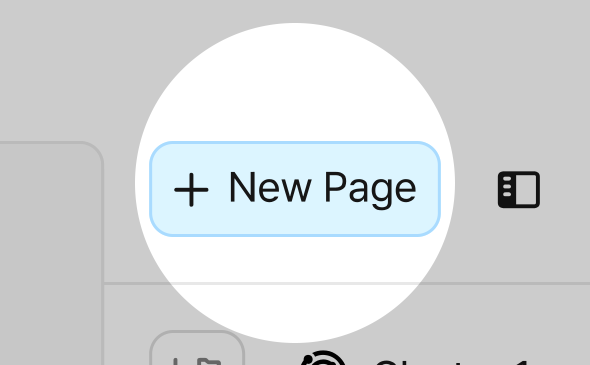
- Click the New Page button in the upper-left corner of the Cluster screen, or press
Ctrl + PCmd + P. - Choose the type of page, then click New to create a blank page.
- Google Workspace: Google Docs, Google Sheets, Google Slides, Google Forms
- Offline files: Text file, Word document, Excel document, PowerPoint document, HWPX document
New pages are saved in the same Cluster as your other Items, so you can manage reference materials and working documents in one place.
Tips for Personal Use
Section titled “Tips for Personal Use”- Save web pages you use often as Web-Links.
- Create separate Spaces for each type of resource or area of interest.
- Organize your resources into Clusters and folders so you can find them again easily with Path Finder.
Example: Create a Personal Research Space and collect Web-Links and PDFs in it
Tips for Team Use
Section titled “Tips for Team Use”- Create a shared Space for each team or project.
- Collect and manage the documents, links, and files you need together in one Space.
- Connect short links and sharing to your saved resources to speed up external delivery and collaboration.
Example: Run a Product Revamp Space with References, Planning, and Shared Files Clusters, and bundle frequently referenced documents and links with short links to shorten handovers
Next Steps
Section titled “Next Steps”Once you’ve finished the basic setup, explore and make the most of Stelllink’s features with the guides below.