

Space Browser
Introduction
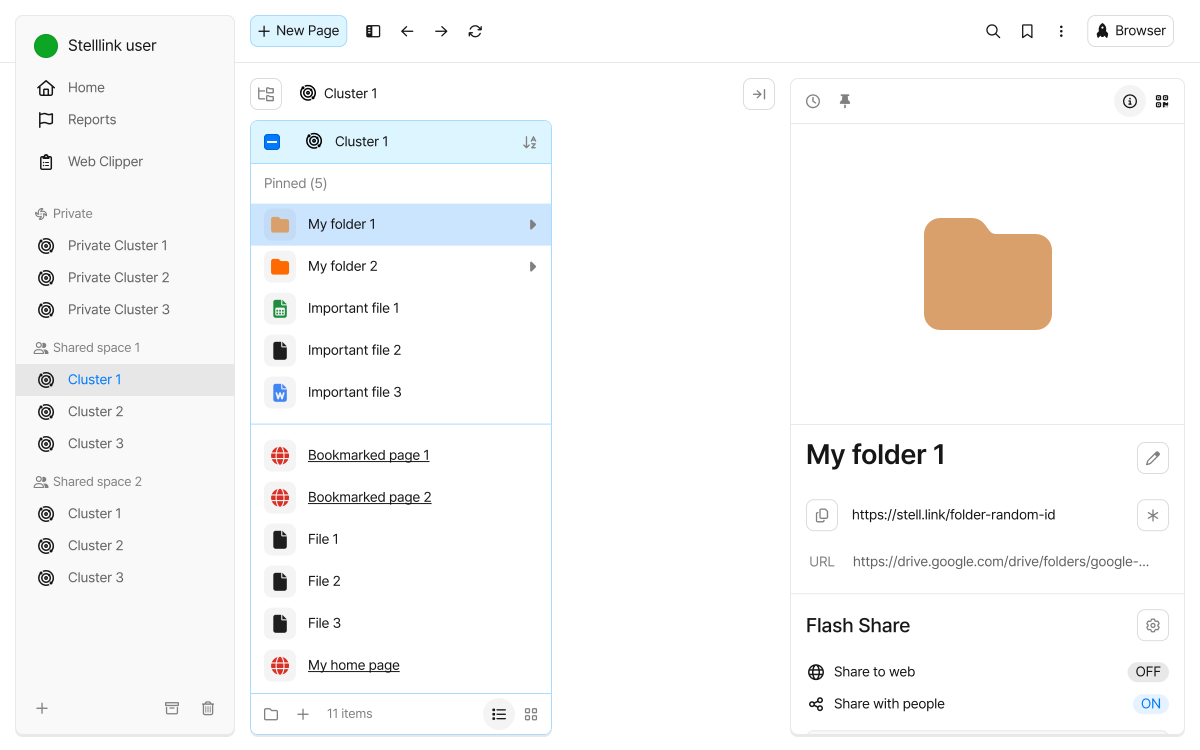
Section titled “Introduction”The Space Browser is the main screen for organizing and exploring your resources in Stelllink. Open a Space or Cluster to browse files, folders, pages, and Web-Links in columns, then check an Item’s details and share it, all on one screen.
| # | Area | Description |
|---|---|---|
| 1 | Sidebar | Lists your Spaces and Clusters. Click a Cluster to open the Items in it. |
| 2 | Top bar | Gives you quick access to key features such as creating a page, Path Finder, My favorites, and Rocket Browser. |
| 3 | Columns | Show the Items in a Cluster or folder. Each folder you open adds a new column to the right. |
| 4 | Preview panel | Shows a preview of the selected Item along with its short link, sharing status, and details. |
Sidebar
Section titled “Sidebar”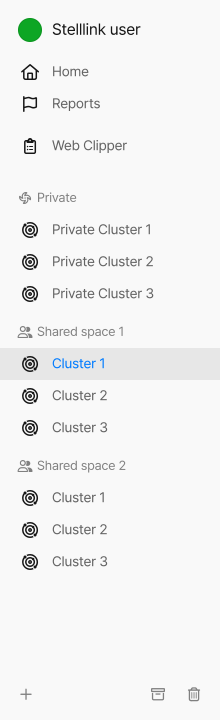
The sidebar shows every Space you belong to and the Clusters in it, so you can find and open them in one place.
- Top menu: Go straight to Home, Reports, Web Clipper, or Open Space. Open Space appears only when you’ve saved a folder shared with you on the web.
- Space list: Clusters are grouped under each Space. Click a Space name to collapse or expand its list, and use the Create cluster button to add a new Cluster.
- Space menu: Right-click a Space name to open Sidebar preferences or Manage space. Shared Spaces also show Manage clusters, Manage members, and Manage guests.
- Cluster menu: Right-click a Cluster to choose Rename cluster or Archive cluster.
- Bottom buttons: Use Create shared space, Toggle archived cluster, and Toggle trash.
Hide or show the sidebar with the Toggle sidebar button in the top bar or Ctrl + \Cmd + \. Drag the edge of the sidebar to change its width. You can change the order and display of Spaces and Clusters in Preferences.
Browse in columns
Section titled “Browse in columns”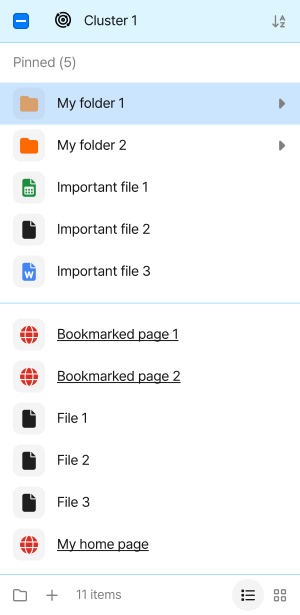
When you open a Cluster, its Items appear in the first column. Click a folder and its Items open in the next column to the right. Parent and child folders sit side by side, so you can dig into deep folders without losing track of where you are.
- Path: The path to your current location appears above the columns. Click the Folder tree button to see the Cluster’s folder structure as a tree and jump straight to any folder.
- Go back, Go forward: Use the Go back and Go forward buttons in the top bar, or
Ctrl + [Cmd + [andCtrl + ]Cmd + ], to move between locations you’ve visited. - Column width: Drag the right edge of a column to change its width.
- Pin to the top: Pin Items you open often with Pin to the top, and they’re gathered under Pinned at the top of the column.
Views and sorting
Section titled “Views and sorting”- List view, Thumbnail view: Use the buttons at the bottom of a column to change its view. Each column has its own view. For folders full of images, switch to Thumbnail view to see everything at a glance. New columns open in List view.
- Sort: Use the sort button at the top of a column to sort by name, size, kind, creation date, or modification date.
- Compact view, Expanded view: Change the spacing between Items from the more menu in the top bar. This applies to all columns.
- Show item info: Turn this on from the more menu in the top bar to show the last modified time and size under each Item’s name.
Work with Items
Section titled “Work with Items”You can work with Items in the Space Browser just like you do in Windows File Explorer or macOS Finder. To learn how to upload files or save Web-Links, see the Getting Started page.
Select
Section titled “Select”- Click an Item to select it. Its details appear in the preview panel.
- Hold
CtrlCmdand click to pick several Items one by one, or holdShiftand click to select a range. - Drag from an empty area of a column to select every Item inside the box.
- Press
Ctrl + ACmd + Ato select all Items in a column, andEscto clear the selection. - Use the arrow keys to browse with the keyboard:
↑↓move between Items and←→move between columns.
Double-click an Item, or select it and press Enter, to open it in the way that fits its kind.
- Folders: The folder’s Items open in the column to the right.
- Image, PDF, audio, and video files: Open large in the Preview Browser.
- Pages and Web-Links: In the desktop app, they open in Rocket Browser. Turn off Prefer Rocket Browser in Preferences to open them in your device’s default browser instead.
- Other files: In the desktop app, the file is downloaded and opened in an app installed on your device.
In the web version, pages, Web-Links, and files open in a new browser tab.
Move and copy
Section titled “Move and copy”- Drag to move: Drag Items onto another folder, a column, or a Cluster in the sidebar to move them. Pause over a folder while dragging to open it, so you can move Items into deeper folders too.
- Drag to copy: Hold
CtrlOptionas you drop to copy the Items instead of moving them. - Copy and paste: Copy with
Ctrl + CCmd + Cor cut withCtrl + XCmd + X, then paste into the column you want withCtrl + VCmd + V. - Undo: If you moved or deleted something by mistake, undo it with
Ctrl + ZCmd + Z.
Item menu
Section titled “Item menu”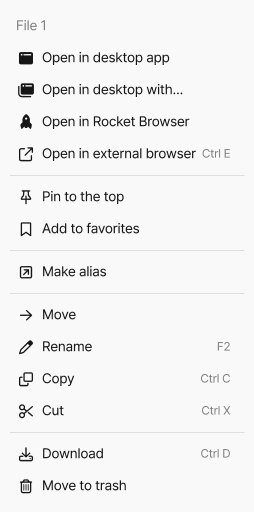
Right-click an Item to use the features below. When several Items are selected, only the features that can apply to all of them are shown.
| Menu | What it does |
|---|---|
| Preview | Opens image, PDF, audio, and video files in the Preview Browser. |
| Open in desktop app | Opens the file in an app installed on your device. Use Open in desktop with… to choose the app. |
| Open in Rocket Browser | Opens the Item in Rocket Browser. |
| Open in external browser | Opens the Item in your device’s default browser. |
| Pin to the top | Shows the Item under Pinned at the top of the column. |
| Add to favorites | Pins the Item to My favorites. |
| Make alias | Creates an alias that links to the original Item. Useful when you want to open the same resource from several places. |
| Rename | Changes the Item’s name. |
| Copy, Cut | Copies or cuts the Item so you can paste it somewhere else. |
| Download | Downloads the Item to your device. |
| Move to trash | Moves the Item to the trash. |
Open in desktop app, Open in Rocket Browser, and Open in external browser appear only in the desktop app. Right-click an empty area of a column to use New page, New folder, Upload files, and Paste. In the desktop app, you can also use Import bookmarks to bring your browser bookmarks in as Web-Links.
Deleted Items don’t disappear right away; they’re moved to the trash. Click Toggle trash at the bottom of the sidebar to open the trash of the Cluster you’re viewing, then right-click an Item to Restore it or Delete permanently. Items in Web Clipper skip the trash and are deleted right away.
Items in the trash are kept for up to 30 days and then deleted permanently. To empty the trash right away, click Empty trash in the trash column.
Preview panel
Section titled “Preview panel”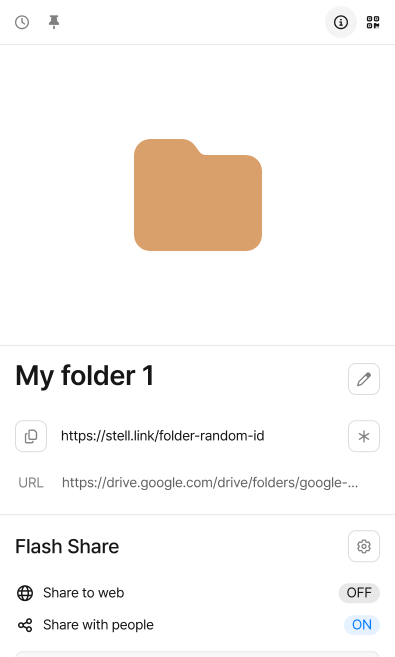
When you select an Item, its content and details appear in the preview panel on the right. You can skim through resources without opening them, pick the one you need, and go straight on to sharing it.
| # | Area | What it does |
|---|---|---|
| 1 | Item preview, QR Code | Use the buttons at the top to switch between the Item’s preview and its QR code. You can save the QR code as a PNG or SVG image. |
| 2 | Name and short link | The Item’s short link appears under its name; click it to copy it. Use Customize Stelllink to change the short link’s ID and expiration date. |
| 3 | URL | Shows the original address of a Web-Link. Use Edit original link to change it. |
| 4 | Flash Share | Shows whether Share to web and Share with people are on, and opens Sharing preferences. |
| 5 | Link Tracker | Shows visit statistics for Items with Link Tracker turned on. |
| 6 | Details | Shows information such as the Space, Cluster, kind, size, modification date, creation date, owner, and your permission. |
Use the History button at the top of the preview panel to see the Item’s change history, and the Pin to the top button to pin the Item to the top of its column. For more about short links, QR codes, sharing, and Link Tracker, see the Short Link page.
- When you select several Items, the panel shows how many are selected and their total size, and Copy Stelllink copies the short links of all of them at once.
- For Web-Links to Google documents such as Google Docs and Google Sheets, click Convert to my page to duplicate the original document and turn it into your own page.
- Hide the panel with the Hide preview panel button at the upper right of the columns to give the columns more room. To bring it back, click Show preview panel.
Path Finder
Section titled “Path Finder”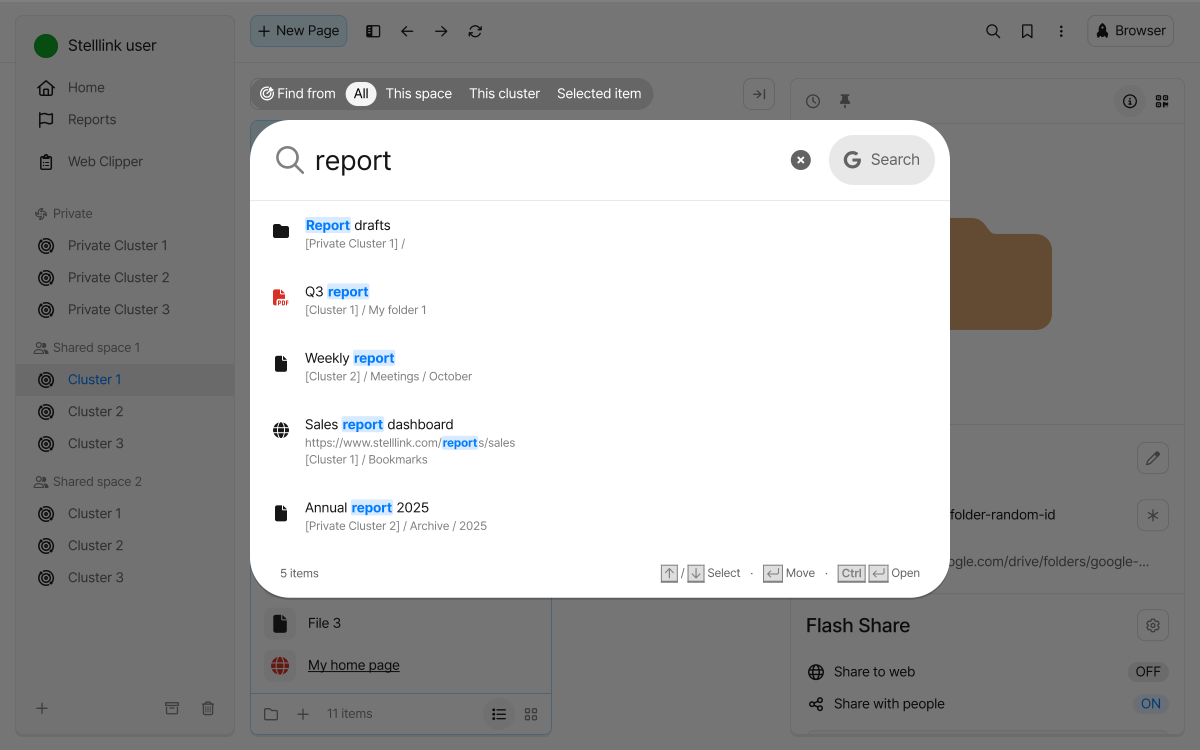
Path Finder is a search tool that quickly finds any Item in your account by name. Open it with the search button in the top bar or by pressing Ctrl + FCmd + F.
- Type at least two characters of the Item’s name. You can also search by part of a name or by a Web-Link’s address.
- If needed, choose where to search under Find from. You can also press
Tabto switch.- All: Every Space in your account
- This space, This cluster: The Space or Cluster you’re viewing
- Selected item: Inside the selected folder
- Choose an Item from the results. Each result shows its name and where it’s saved.
- Move: Click a result or press
Enterto go to the Item’s location in the Space Browser. - Open: Press
Ctrl + EnterCmd + Enterto open the Item right away.
- Move: Click a result or press
If you press Enter without choosing a result, Path Finder opens the page when what you typed is a web address, or searches Google when it’s a regular search term.
Keyboard shortcuts
Section titled “Keyboard shortcuts”These are the shortcuts you’ll use most in the Space Browser. To see the full list in the app, press Ctrl + /Cmd + /.
| Action | Shortcut |
|---|---|
| New page | Ctrl + PCmd + P |
| Upload file | Ctrl + UCmd + U |
| Path Finder | Ctrl + FCmd + F |
| Toggle my favorites | Ctrl + Shift + FCmd + Shift + F |
| Toggle sidebar | Ctrl + \Cmd + \ |
| Toggle home | Ctrl + Shift + HCmd + Shift + H |
| Toggle Rocket Browser mode | Ctrl + Shift + BCmd + Shift + B |
| Copy, Cut, Paste | Ctrl + C, Ctrl + X, Ctrl + VCmd + C, Cmd + X, Cmd + V |
| Select all | Ctrl + ACmd + A |
| Rename | F2 |
| Download file | Ctrl + DCmd + D |
| Move to trash | DeleteCmd + Delete |
| Undo | Ctrl + ZCmd + Z |
| Redo | Ctrl + Shift + ZCmd + Shift + Z |
| Go back, Go forward | Ctrl + [, Ctrl + ]Cmd + [, Cmd + ] |
You can change the shortcut for moving Items to the trash with Item delete shortcut key in Preferences.
Space Browser in the mobile app
Section titled “Space Browser in the mobile app”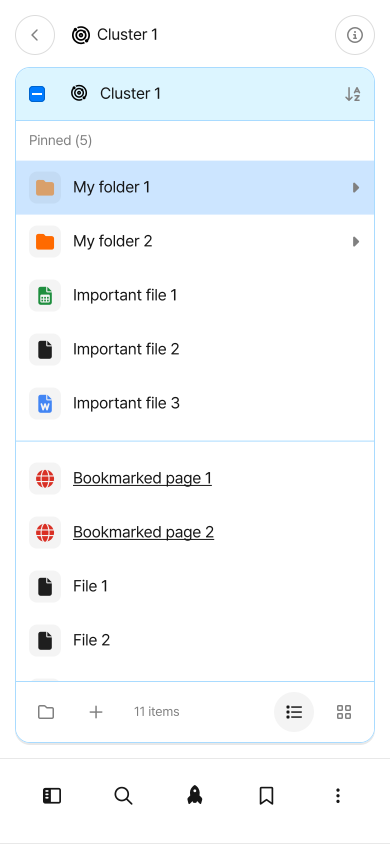
The same Space Browser is available in the mobile app, with some behavior adjusted to the screen size and touch input.
- Phone screens: One column appears at a time; swipe left or right to move between columns. The top bar’s features move to buttons at the bottom of the screen.
- Touch gestures: Double-tap an Item to open it, and long-press it to open the Item menu. On phones, pull the list down to open Path Finder.
- Preview panel: Closed by default on phones and tablets. Tap the Show preview button, or swipe left on an empty area of the column, to open it. On iPhone, you can also swipe in from the right edge of the screen.
- Opening Items: Audio and video files open in the in-app Rocket Browser. When Prefer Rocket Browser is on, pages and Web-Links open in Rocket Browser too.