

Additional Features
Introduction
Section titled “Introduction”Stelllink has many handy features that make saving and finding your resources faster. Each one is small, but the more familiar you get with them, the less effort saving takes and the less time finding things again takes.
| Feature | Description |
|---|---|
| My favorites | Pin Items you open often by group and open them right away. |
| Home screen | See recent Items, favorites, and Spaces at a glance, and decorate the background. |
| Real-time collaboration | See which members are in a shared Cluster and where their cursors are. |
| Paste to save | Save images, files, and URLs you’ve copied just by pasting them. |
| Notifications | Check requests you’ve received and changes to your Items. |
| Transfers | Track upload and download progress and look back on past transfers. |
| Multiple accounts and windows | Switch between accounts, and open several windows in the desktop app. |
| Import bookmarks | Bring in bookmarks from other browsers as Web-Links all at once. |
| Tips and feedback | Learn how each feature works, and send feedback or report bugs. |
Favorites
Section titled “Favorites”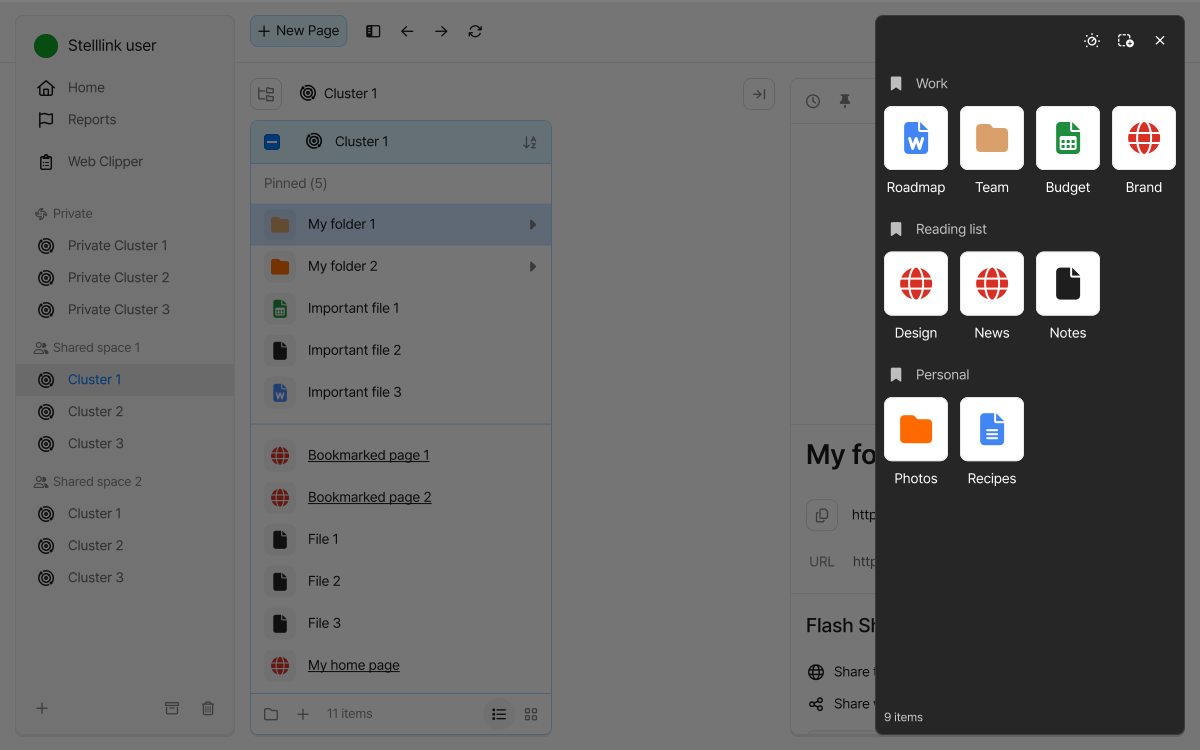
Pin Items you open often to My favorites so you can open them right away from anywhere. You can pin any kind of Item, such as folders, files, pages, and Web-Links, and organize them into groups by topic.
Add to favorites
Section titled “Add to favorites”- In the Space Browser, right-click the Item you want to pin and choose Add to favorites. You can add several Items at once.
- Choose the group to pin the Item to, then click Add.
In Rocket Browser, click Add favorite here in the My favorites panel to pin the web page you’re viewing right away. For details, see the Rocket Browser page.
Open favorites
Section titled “Open favorites”- My favorites window: Open it with the My favorites button in the Space Browser’s top bar, or
Ctrl + Shift + FCmd + Shift + F. - Home screen: Open favorites right from the Favorites tab on the Home screen.
- Rocket Browser: Open them from the My favorites panel in Rocket Browser.
Clicking a favorite folder opens its location in the Space Browser, and files such as images and PDFs open in the Preview Browser, where you can page through the files in the same group. Favorites are saved to your account, so the same list appears on your other devices and windows.
Manage groups and reorder
Section titled “Manage groups and reorder”- New group: Add a group with New group at the top of the My favorites window.
- Group menu: Click a group’s handle button to use Rename group, Unpin all items, and Remove group. You must keep at least one favorites group.
- Reorder: Turn on Edit mode or press and hold an Item, then drag groups and Items to reorder them or move Items to another group.
- Unpin: Right-click an Item and choose Remove item. The original Item isn’t deleted.
Home screen
Section titled “Home screen”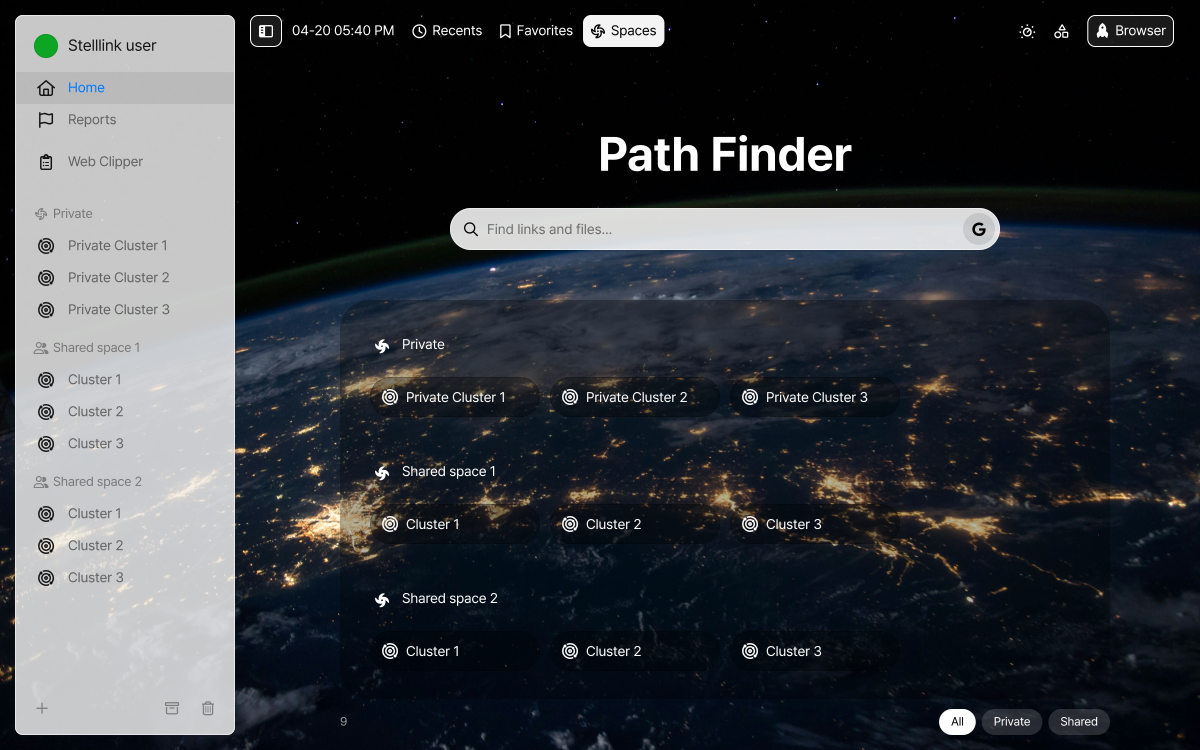
The Home screen appears by default when you start the app. You can change it in First screen of new windows under Preferences > General. Switch between Home and the screen you were on at any time with Ctrl + Shift + HCmd + Shift + H.
- Search: Start typing in the search box in the middle to open Path Finder and start searching.
- Recents: Shows Items you’ve used recently, grouped into today, yesterday, a week ago, and a month ago.
- Favorites: Shows the Items pinned to My favorites by group. Use Show in enclosing folder to open the location where an Item is saved.
- Spaces: Shows your Spaces and Clusters. Click a Cluster to open it.
Switch tabs with Alt + 1Option + 1, 2, and 3. Turn on Edit mode in the top bar to clear recent history, unpin favorites, and reorder Spaces and Clusters.
Customize home
Section titled “Customize home”Change the Home screen’s background in Customize home in the top bar. The background is saved to your account and applies on your other devices too.
- Gallery: Choose from the default colors and background images.
- Upload, Link: Upload an image from your device or enter an image address to use as the background. A 1920×1080px image is recommended.
- Reposition: Drag or zoom the background image to adjust what’s shown.
- Reset to default: Go back to the original background.
Real-time collaboration
Section titled “Real-time collaboration”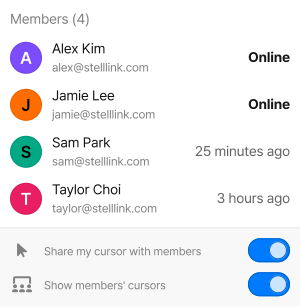
When you open a Cluster in a shared Space, the top bar shows how many members are online right now. Click this button to see the Cluster’s members and each member’s status.
The cursors of members viewing the same Cluster appear on your screen in real time, along with their names. You can tell right away which resource a colleague is looking at, so you can talk through the same resources without sharing your screen.
You can turn each of these two settings on or off in the member list.
- Share my cursor with members: Turn off to hide your cursor from other members.
- Show members’ cursors: Turn off to stop other members’ cursors from appearing on your screen.
Paste to save
Section titled “Paste to save”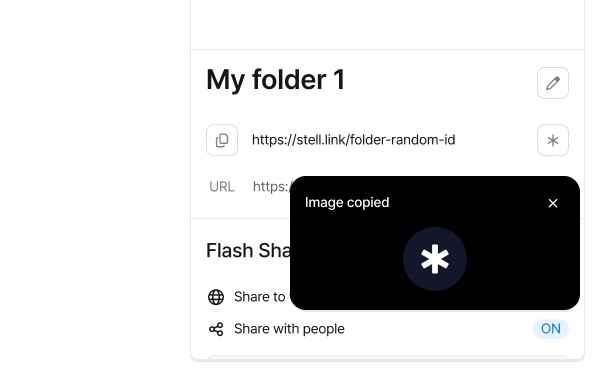
In the Space Browser, open the Cluster or folder where you want to save, then press Ctrl + VCmd + V to save what you copied right away. There’s no separate upload step, so you can keep collecting without breaking your flow.
- Images: Copied images, such as screenshots, appear as Items right away, and the preview opens once the upload finishes.
- Files: Files copied from File Explorer or Finder are saved after an upload confirmation.
- URLs: Copied addresses are saved as Web-Links, with the page title and icon filled in automatically.
- Stelllink Items: Stelllink Items copied in another window or account are copied, and cut Items are moved.
Copy an Item, then right-click an empty area of a column and choose Paste to double-check the destination before pasting. To link to the same resource instead of copying it, make an alias.
Notifications
Section titled “Notifications”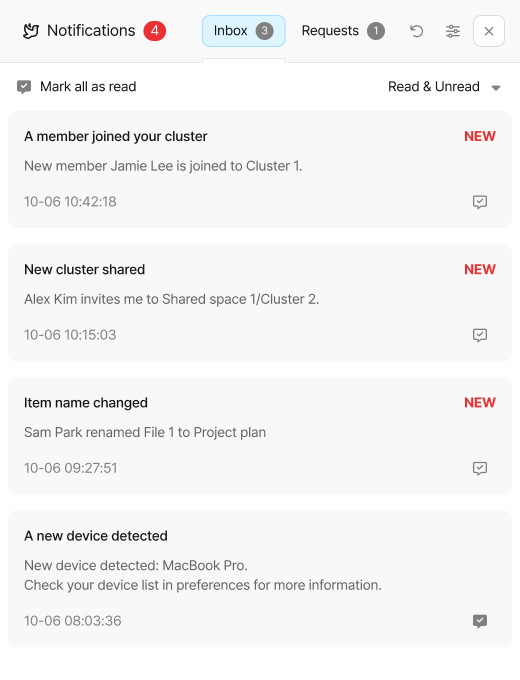
Click your account at the top of the sidebar, then click the notifications button in the window that opens. If you have unhandled requests or unread notifications, you’ll see a message when the app starts.
- Inbox: Check news such as new members, Spaces and Clusters shared with you, changes to your Items, sign-ins from new devices, Google Drive connection problems, and subscription renewals. Use Mark all as read to mark everything as read at once.
- Requests: Accept or Deny Space and Cluster invitations, shared Items, and permission requests. Use Accept all requests to accept every pending request at once.
Transfers
Section titled “Transfers”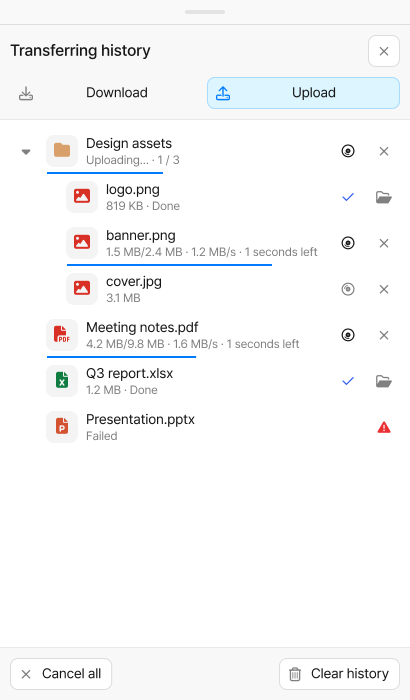
When you upload or download files, check their progress with the Transferring history button in the top bar. Cancel transfers in progress one by one or with Cancel all, and find downloaded files right away with Open location.
Search and clean up past transfers in Upload history and Download history in the more menu of the top bar.
Items that failed to copy to Google Drive get a warning mark. Click the mark to try copying again.
Multiple accounts and windows
Section titled “Multiple accounts and windows”- Switch accounts: Click your account at the top of the sidebar to see the accounts you’re signed in to. Click another account to switch to it, or use Add account to sign in to a new one. Hold
CtrlCmdas you click an account to open it in a new window. - New window: In the desktop app, press
Ctrl + NCmd + Nto open another window and work with several locations side by side. You can also drag Items between windows signed in to the same account to move them. - Always on top: Turn on Always on top in the desktop app’s tray icon menu to keep Stelllink windows in front of other windows.
The desktop app keeps running in the tray even when you close all its windows. To quit completely, click Quit in the tray icon menu.
Import bookmarks
Section titled “Import bookmarks”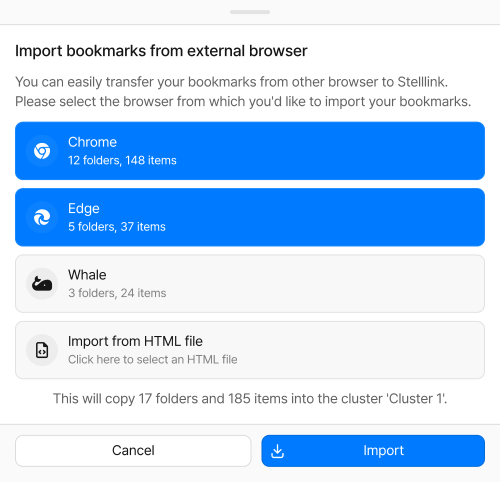
In the desktop app, you can bring in bookmarks saved in other browsers as Stelllink Web-Links all at once.
- Open the Cluster or folder to import into, right-click an empty area of a column, and choose Import bookmarks.
- Select the browsers to import bookmarks from. If a browser isn’t listed, export its bookmarks as an HTML file from its bookmark manager, then load the file with Import from HTML file.
- Check the number of folders and Items to import, then click Import.
Imported bookmarks are saved, with their original folder structure, in a folder named Imported bookmarks from followed by the browser name.
Share files from your phone
Section titled “Share files from your phone”In the mobile app, you can send files straight to Stelllink by choosing Stelllink from the share menu of another app, such as Photos or Files. When Stelllink opens, tap Select cluster/folder, go to where you want to save, then tap Upload here. Only files can be sent through the share menu, not folders.
Tips and feedback
Section titled “Tips and feedback”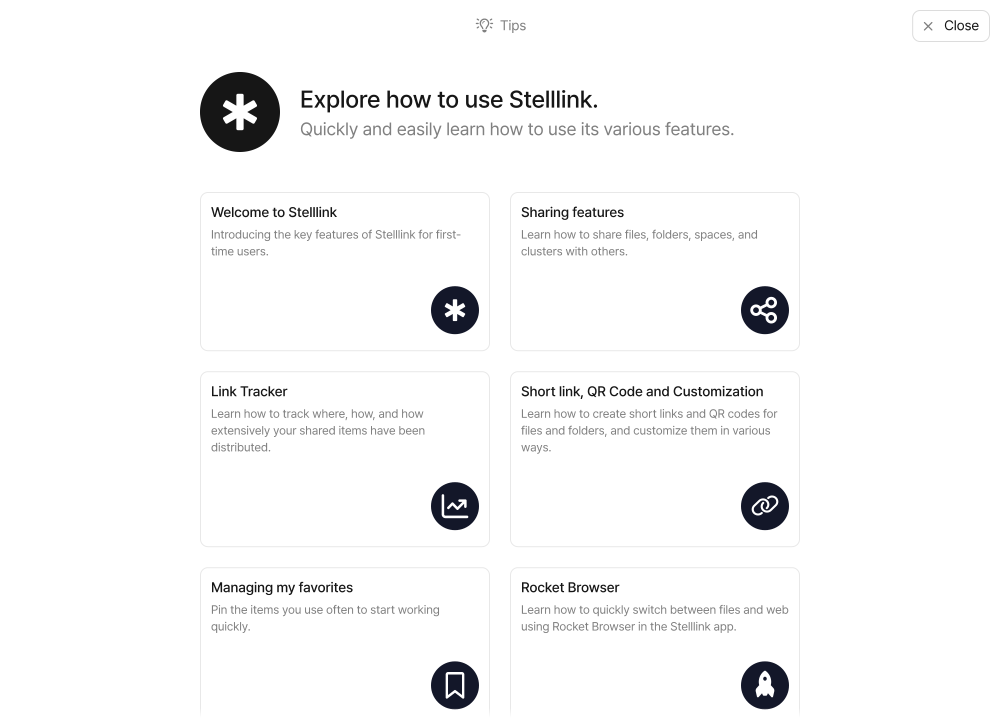
In Tips in the more menu of the top bar, follow step-by-step guides for features such as sharing, Link Tracker, short links and QR codes, My favorites, Rocket Browser, desktop app syncing, Path Finder, the sidebar, Reports, managing multiple accounts, and importing bookmarks.
To stop the welcome page from appearing when the app starts, turn off Show welcome page on app launch in Tips.
Feedback
Section titled “Feedback”Send feedback at any time with the feedback button in the lower-right corner of the screen, or Feedback in the more menu of the top bar.
- Describe your feedback or the problem. Attach screenshots by clicking Upload image or pasting images into the text box.
- Click Send.
- Choose the kind of feedback, Review, Bug report, or Other feedback, to send it.
Check the progress of the feedback you’ve sent, such as Received, In progress, and Resolved, in My feedback, and add more details if needed. Click Help center in the feedback window to come to this help site.