

Spaces and Items
Introduction
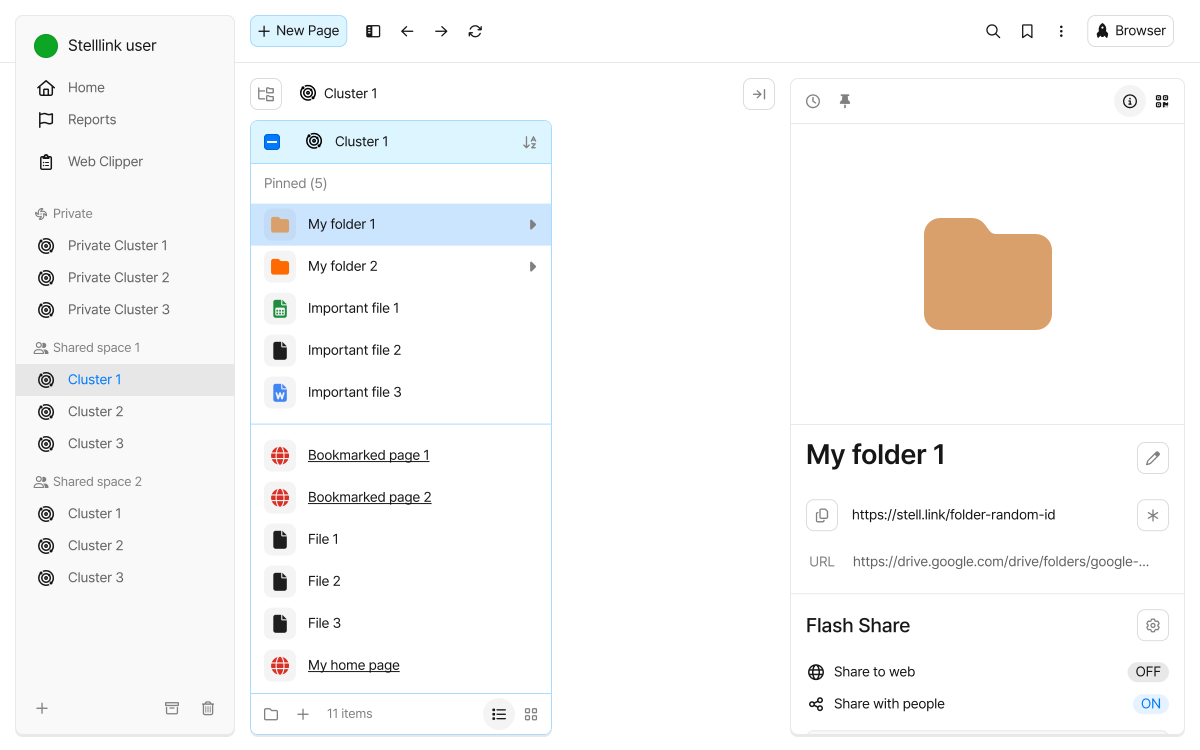
Section titled “Introduction”Stelllink organizes your resources in three levels: Space → Cluster → Item. You keep topic-based drives inside a large workspace and put the actual resources inside them, so even as your resources grow, it’s easy to tell what’s where.
| Level | Description | Example |
|---|---|---|
| Space | The largest workspace, grouping several Clusters. Invite members to a shared Space to use it together. | Product Revamp, Personal Research |
| Cluster | A drive inside a Space that groups and stores resources by topic. | References, Planning, Shared Materials |
| Item | The actual resources stored in a Cluster: files, folders, pages, and Web-Links. | Proposal.pdf, Meeting notes |
Spaces
Section titled “Spaces”There are two kinds of Spaces: Private space and Shared space.
- Private space: A Space only you use. Every account has one, and it appears as Private in the sidebar. You can’t add members to it; to share resources with others, share Items one at a time.
- Shared space: A Space you use together with the members you invite. You can create several, one per project, team, or topic.
In the desktop and mobile apps, you can also use Offline spaces, which connect a folder on this device as a Space. Their resources are stored in the folder on this device instead of on a server. For details, see the Offline Spaces page.
Create a shared Space
Section titled “Create a shared Space”- Click the New space button at the bottom of the sidebar and choose Shared space. You can also use the Create button in Preferences > Shared space.
- Enter a name for the new shared Space, then click Create.
Whoever creates a shared Space becomes its Super admin. You can rename the Space at any time in Preferences > Shared space.
Leave or delete a Space
Section titled “Leave or delete a Space”Expand a Space in Preferences > Shared space to use Leave space or Delete space, depending on your role.
- Leave space: Available to Admins and Members. Removes you from the Space and its Clusters; to get back in, an admin has to invite you again.
- Delete space: Available only to Super admins. Enter the Space name to confirm, then click Delete permanently.
Clusters
Section titled “Clusters”A Cluster is a drive inside a Space that groups and stores resources by topic. Create Private clusters in your Private space and Shared clusters in shared Spaces.
- Create: In the sidebar, click the Create cluster button next to a Space name and enter a name. In shared Spaces, only Super admins and Admins can create Clusters.
- Rename and change the icon: Right-click a Cluster and choose Rename cluster to change its name, icon, and color. A Cluster’s icon and color apply only to you.
- Archive: Right-click a Cluster you no longer use but want to keep, and choose Archive cluster. Archived Clusters are hidden from the sidebar; show them again with Toggle archived cluster at the bottom of the sidebar.
- Reorder: Drag Clusters in the sidebar to change their order. The order applies only to you. Drag a shared Cluster onto another shared Space to move it there.
- Delete: Click Delete cluster in Preferences > Private space, or in Manage clusters from the Space menu in the sidebar. Deleting a Cluster permanently deletes every Item in it. To delete an archived Cluster, unarchive it first.
Members and permissions
Section titled “Members and permissions”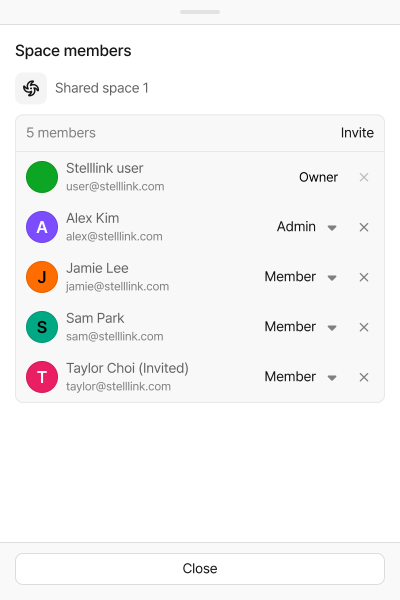
In a shared Space, you can invite members to manage resources together. What a member can do depends on their role in the Space and their permission in each Cluster.
Space roles
Section titled “Space roles”| Role | What they can do |
|---|---|
| Super admin | Everything an Admin can do, plus delete the Space. Whoever creates the Space becomes its Super admin and can’t leave the Space. The role is shown as Owner in regular shared Spaces and as Super admin in Spaces connected to Google Workspace. |
| Admin | Rename the Space, invite members and change their roles, and create and manage Clusters. Can see every Cluster in the Space and can leave the Space. |
| Member | Use the Items in the Clusters they’ve been invited to, according to their Cluster permission, and leave the Space. |
Change a member’s role in Manage members from the Space menu in the sidebar. A Space must always have at least one Super admin, so the last Super admin’s role can’t be changed or removed.
Invite members
Section titled “Invite members”- In the sidebar, right-click the shared Space name and choose Manage members.
- Click Invite, then search for a user or enter an email address.
- Set the role to Admin or Member, then click Invite.
The invited person becomes a member of the Space once they Accept the invitation in the Requests tab of Notifications. Until then, they appear as Invited in the member list. You can also invite people who haven’t signed up for Stelllink yet by email; they’ll see the invitation once they sign up with that email.
To remove a member from the Space, click the Unshare button next to them in Manage members.
Cluster members and permissions
Section titled “Cluster members and permissions”Becoming a Space member doesn’t give someone access to every resource right away. For a member to see a Cluster’s resources, you also need to invite them to that Cluster.
- Open Manage clusters from the Space menu in the sidebar.
- In the Cluster’s member list, click Invite and choose who to invite from the Space members.
- Set the permission to Read only or Read & Write.
Invited members can use the Cluster’s Items once they Accept the invitation in the Requests tab of Notifications. Only Space members can be invited to a Cluster. Removing someone from a Cluster keeps them in the Space as a member.
Guests
Section titled “Guests”Guests are users outside the Space who were given access to individual Items. They can’t access the Space or its Clusters, only the Items shared with them. To learn how to share Items, see the Short Link page.
Check guests and remove their access in Manage guests from the Space menu in the sidebar for shared Spaces, or in Preferences > Private space for your Private space.
Request permission
Section titled “Request permission”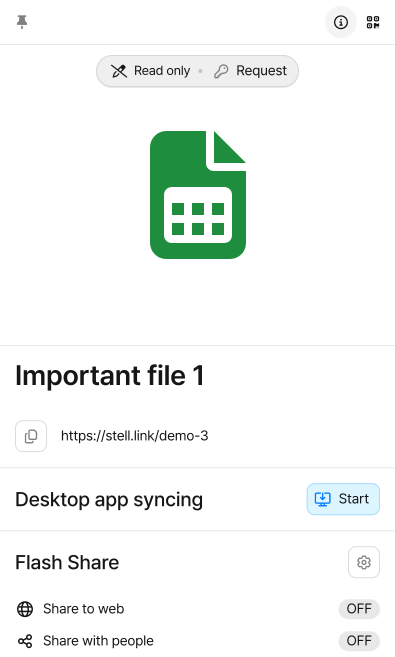
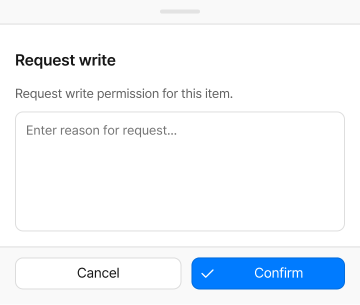
When you select an Item you don’t have permission for, the preview panel shows Read only or No access. Click Request there to ask the Item’s owner for permission.
- Click Request in the preview panel or the Item menu.
- Enter a reason if needed, then click Confirm.
- Once the Item’s owner clicks Accept in the Requests tab of Notifications, the permission applies right away.
Items are the actual resources stored in a Cluster. Resources of different kinds can sit side by side in the same Cluster, so you can manage reference materials and working documents in one context.
| Kind | Description |
|---|---|
| File | Documents, images, PDFs, and other resources uploaded from your device. |
| Folder | The basic unit for keeping and sorting Items. |
| Page | Google Workspace documents and offline documents you create right in Stelllink. |
| Web-Link | A shortcut based on a web page’s URL. |
Create Items
Section titled “Create Items”
- Folders: Click the New folder button at the bottom of a column, or right-click an empty area of a column and choose New folder. A name, icon, and color are filled in at random; change them as you like, or pick again with Random.
- Pages: Open the New page screen with the New Page button or
Ctrl + PCmd + P.- Google Workspace: Google Docs, Google Sheets, Google Slides, Google Forms
- Offline files: Text file, Word document, Excel document, PowerPoint document, ThinkFree Office HWPX document
- Files and Web-Links: Upload files by dragging them in or pasting them, and save Web-Links by pasting a URL or with Rocket Browser or Web Clipper. For details, see the Getting Started page.
Rename and change the icon
Section titled “Rename and change the icon”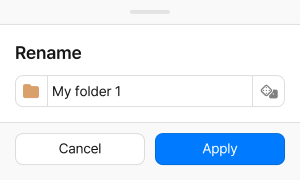
Right-click an Item and choose Rename, or press F2, to change its name. On the same screen, click the icon button to change the Item’s icon and color too.
- Choose from the built-in icons or emoji.
- You can also upload your own image to use as the icon. The recommended size is 280×280px.
Give folders you open often and important documents an icon and color that stand out, and you’ll spot them at a glance among many Items.
Aliases
Section titled “Aliases”An alias is an Item that links to an original Item. When you need to open the same resource from several Clusters or folders, make aliases instead of copies so you only have to maintain the original.
- Create: Right-click an Item and choose Make alias to create an alias in the same column. Then move the alias to the Cluster or folder where you want it.
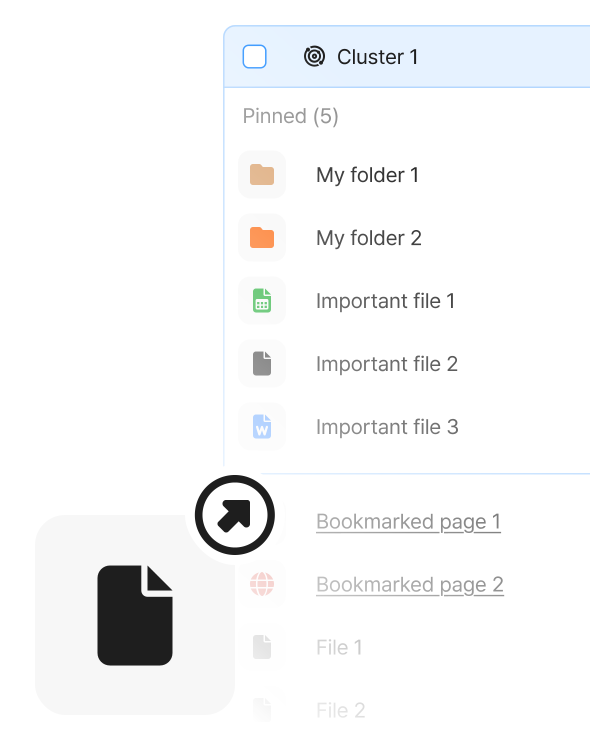
- Tell them apart: Aliases have an arrow on their icon and show Alias as their kind in the preview panel. At the bottom of the preview panel, you can check the original Item’s details and go to the original.
- Items shared with you: Items others share with you are managed as aliases too. When Newly shared appears in a column, use Add item here to add aliases where you want them, or Add later to put it off. You can always find every Item shared with you in Shared inbox under Reports.
Desktop app syncing
Section titled “Desktop app syncing”In the desktop app, you can download a file to your device, open it in an app installed there, and upload your changes back to Stelllink. Syncing starts when you double-click a file that can’t be previewed, or when you click Start under Desktop app syncing in the preview panel.
- When you edit the file on your device, the preview panel shows that you have changes that haven’t been uploaded. Click Upload to make your edits the latest version.
- If the file was changed on another device, click Update to get the latest version.
- Click Stop to finish syncing. Changes you haven’t uploaded are lost when you stop, so upload anything you need first.
History
Section titled “History”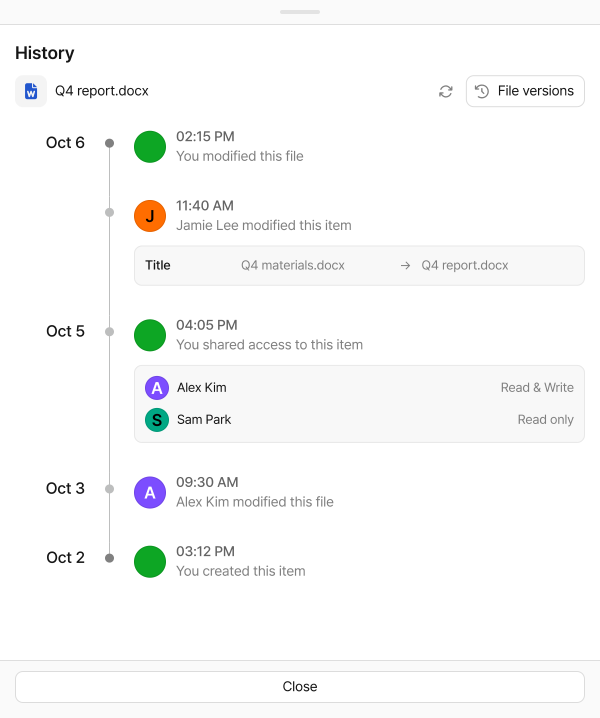
History shows who changed an Item, when, and how. Open it with the History button at the top of the preview panel.
- Records of creating, editing, moving, deleting, and restoring the Item, as well as changes to its sharing settings, short link, and QR code, are listed by date.
- For folders, you can also see records of Items created in or moved into the folder.
- When you select a Cluster, the preview panel shows the Cluster’s history too, and you can check a Space’s history in Preferences > Shared space.
History is available for Items you have Read & Write permission for. How far back you can see depends on your plan.
File versions
Section titled “File versions”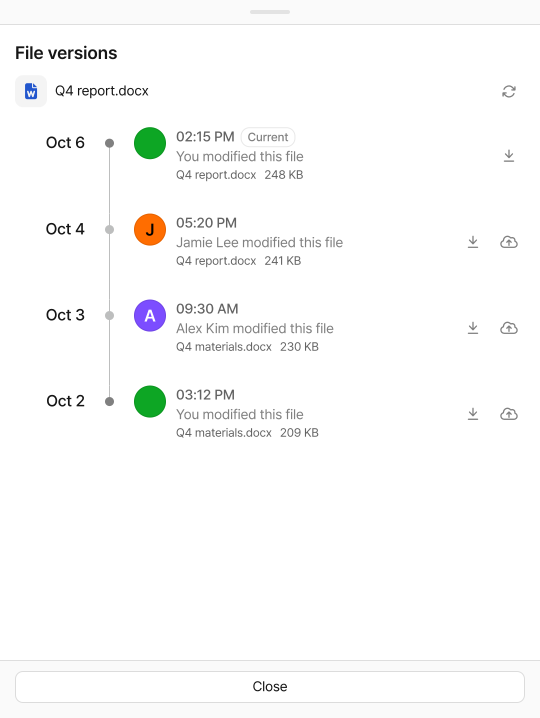
For a file, the File versions button at the top right of History opens the list of versions its content has gone through. The list is based on the file versions kept in Google Drive, and the version at the top is the Current one.
- Use a version’s Download button to get the file as it was at that point. In the desktop and mobile apps, the downloaded file opens right away.
- In the desktop app, Restore this version takes the file back to that point. The version opens first so you can check its content, and clicking Restore saves it as the newest version. Earlier versions stay in the list.
- Restoring a file is recorded in History as well.
Older versions may drop off the list according to Google Drive’s retention policy.
Delete and restore
Section titled “Delete and restore”Deleted Items are moved to the trash that each Cluster has, and kept for up to 30 days. Open the trash with Toggle trash at the bottom of the sidebar, then Restore Items or Delete permanently. For details, see the Space Browser page. The trash in an Offline space isn’t emptied automatically; see the Offline Spaces page for details.
Undo what you just did with Ctrl + ZCmd + Z. You can undo creating Items, changing names and icons, moving, moving to the trash, and restoring. Delete permanently and Empty trash can’t be undone.
Suggested ways to organize
Section titled “Suggested ways to organize”To start, try dividing your Spaces and Clusters like this.
- Space: By project, team, or broad topic
- Cluster: By task, kind of resource, or stage
- Folder: By smaller groups within a Cluster
For example, dividing things as below makes it easy to guess where resources are as they grow, and makes Path Finder’s results much easier to read.
- Hiring project:
Candidates,Job postings,Interview materials,Shared Materials - Brand renewal:
References,Drafts,Meeting notes,Release materials - Personal knowledge:
To read,In progress,Archive